Showing posts with label Microsoft. Show all posts

Demo Data for Microsoft Dynamics AX 2009 (en-us)

July 20, 2008

The much awaited Demo Data for Microsoft Dynamics AX 2009 RTM has been released about 10 days ago. However, only demo data for United States English is available at the moment. No news on the availability of demo data in other languages thus far.

As we have seen in the VPC images, the official demo data is base on Contoso Entertainment systems group of companies instead of the Global Trade and Manufacturing Company used in Microsoft Dynamics AX 4.0. In fact, I suspect the data could very well be the same copy as the latest VPC image released.

Dynamics AX Import vs. SQL Server Backup

The demo data available for download comes in two formats. You may chose between the more conventional Microsoft Dynamics® AX DAT where you import through Dynamics AX Data Import utility and Microsoft SQL Server Backup we have been offered recently. The following table shows the different between the two formats.

Microsoft Dynamics AX DAT Microsoft SQL Server Backup
Smaller download size (179 MB - 216 MB) Bigger download size (403 MB - 419 MB)
Slower import time (25 - 150 minutes) Faster restore time (2 - 4 minutes)
Does not include with demo license Demo license included (expires June 6, 2009)
More complicated import routine Simple restoration routine
Master configuration preserved Reconfiguration required after restore.

So how shall we decide? First of all, you have to identify whether you are storing your AX data in Oracle database or Microsoft SQL Server database. If you have an Oracle database, you should just opt for Microsoft Dynamics AX Data Import. I am not suggesting that the other option is impossible but I guess it is not worth the effort.

The second factor would be Dynamics AX license. I noticed many associates searching for the demo license. I have suggested the possibility of using Dynamics AX 2009 CTP3 Ver02 demo database backup while waiting for partner license in What you need to install Microsoft Dynamics AX 2009. This newer version of demo data comes with demo license that expires on June 6, 2009. If you really need that license, Microsoft SQL Server Backup should be your choice.

If the previous two factors have not helped you decide, let's look at the two time factors; download time and import time. The Dynamics AX DAT file is almost half the SQL Server backup file in size which shall requires about half the time to download. However, the time required to import the AX DAT file is extremely high compared to restoring SQL Server backup.

I have tried both approaches on my humble Xeon dual core with 2 GB of RAM. Importing Dynamics AX DAT file with transaction took my server no less than 3 hours. Because the data is divided into a few files for different company, etc. the process requires interaction in between. Restoring the SQL Server backup on the other hand took the same server no more than 3 minutes.

The ftp server that hosts the files is fairly fast hence download time should not really be a problem if you have decent Internet connection. If your Internet connection is known for bad download performance, you may just opt for go for the smaller download and be patience importing data.

Download Demo Data

You may find further information from the download page at PartnerSource: Demo Data for Microsoft Dynamics AX 2009. The following table shows the four options given. You just need one of these files. Pick one that suits your needs. If you are going for AX Data Import, I would strongly suggest that you follow the instruction found in Loading Contoso Demo Data.

Download Description File Size
ContosoBase.DAT AX Import without transaction 179 MB
ContosoTrans.DAT AX Import with transaction 216 MB
ContosoBase.BAK SQL Backup without transaction 419 MB
ContosoTrans.BAK SQL Backup with transaction 403 MB

Dynamics AX 2009 Installation - Application

July 5, 2008

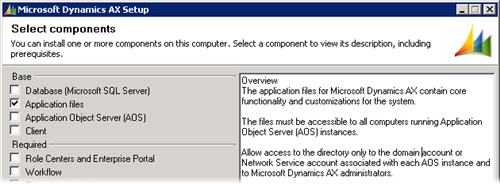
The second component in the installation is the Application files. It resides on the File Server discussed in Microsoft Dynamics AX 2009 Components. These are the files where Microsoft Dynamics AX business logic resides. The following screenshot shows the option in Dynamics AX 2009 setup that installs the application files.

Dynamics AX 2009 Setup - Application files

What to take note

There are two areas I would like you to take note prior to running the installation; the location and disk space.

The Application files are meant to be accessed by Dynamics AX Application Object Server (AOS). Hence, you have to make sure that the location where you install the Application files is accessible by the computer you intend to install the AOS and the account that starts the AOS service has rights over the directory.

A typical production environment has multiple AOS instances running on multiple computers for load balancing. These AOS instances would be configured to access one set of Application files. Therefore, it is common that the Application files are installed in a shared folder.

In term of disk space, an instance of Microsoft Dynamics AX Application files takes up some 3 GB of hard disk space. Expect another 500 MB or so taken upon completion of installation where indexes are built. So, please plan your Application files location properly.

Dynamics AX Setup - Application

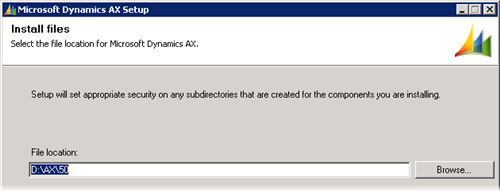
The Application files setup is straightforward. You just have to specify the location, instance name and select optional functionalities. The following screenshots shows the information collected.

Dynamics AX 2009 Setup - Application files Location

Notice the folder structure created with the location you specify previously as the base. A folder named after the instance name you have chosen will be created to store the instance specific Application files.

Dynamics AX 2009 Setup - Application files Instance name

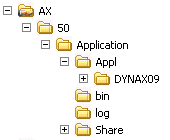
Upon completion, you will have a new Dynamics AX application instance. You shall have the folder structure inside the location you have selected (D:\AX\50 in this case) as shown in the following image.

Dynamics AX 2009 Setup - Application files Folder structure

Conclusion

You should be able to get Microsoft Dynamics AX Application files installed without much drama.

Dynamics AX 2009 Installation - Database

July 1, 2008

We will look at the first component in a Microsoft Dynamics AX installation; database. The following screenshot shows the option in Dynamics AX 2009 setup that achieves this. This option will create a database in Microsoft SQL Server with the necessary stored procedures. If you intend to use Oracle database, you will have to create the database manually. Do take time to ensure you have the required software installed.

Dynamics AX 2009 Setup - Database

You may run this setup on any computer that has access to the Database server. The user account that you use to execute this must be a member of the dbcreator role on the target SQL Server instance. If you are using the administrator account, your account will most likely be a member of the sysadmin role which has the rights of all the roles combined. The following figure shows the property page of a SQL Server login.

Dynamics AX 2009 Setup - Database server role

Before you begin

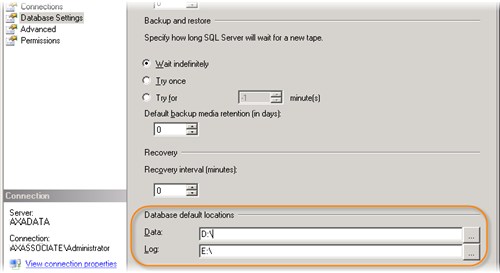
Before you jump into the installation of this component, there one thing I would like you to take note. The installation creates a database without asking you for the location of your data file and log file. It is important that these files are in separate and preferably dedicated physical drive. I suggest that you configure the default file locations in accordance your database server storage plan. This specifies the data and log files locations for databases created subsequently.

Dynamics AX 2009 Setup - Database: default database locations

Dynamics AX Setup - Database

The Database installation is fairly simple. You just have to specify the Microsoft SQL Server instance you would like to create the database on and the name you would like for your new database. The following screenshot illustrates the information collected for this setup.

Dynamics AX 2009 Setup - Database: Create new SQL Server database

Upon completion, you will have a new database with two user stored procedures; CREATESERVERSESSIONS and CREATEUSERSESSIONS. The rest of the objects will be created in subsequent steps of the installation.

Database Access

This database is intended to be accessed by appropriate AOS instances. The account that starts the AOS instances requires certain authority to work correctly. The account must be assigned the db_datareader, db_datawriter and db_ddladmin database roles as shown in the figure below. The first two roles allows AOS to read and write data on the database whereas the final role allows the AOS to create, change and remove objects in the database. DDL in the role name refers to data definition language.

Dynamics AX 2009 Setup - Database User role

Besides these database roles, the AOS account also need execute permission on the two procedures; CREATESERVERSESSIONS and CREATEUSERSESSIONS. The following figure shows the permission configuration for stored procedure.

Dynamics AX 2009 Setup - Database: Stored Procedure permission

Conclusion

This step of the setup process takes little time. There are just a few minor things you should take note to ease the installation of other components as well as administration the system in the long run.

What you need to install Microsoft Dynamics AX 2009

June 27, 2008

As mentioned in Microsoft Dynamics AX 2009 Components, Dynamics AX 2009 is a lot more than just AX Application, AOS and client. It has also expanded externally with integration to various other technologies to achieve its objectives.

As a result, installing Microsoft Dynamics AX 2009 requires more than the installation DVD. This post will provide you with an overview of the software components and their download sources to get you better prepared for the installation.

Some of the components presented below do come in the form of DVD if your company subscribe for them. If you have such luxury, browse through your DVD set to secure them before you set off to install Microsoft Dynamics AX 2009. Otherwise, you might have to spend a day or more to get all of them downloaded.

Microsoft Dynamics AX 2009 Release DVD ISO

Dynamics AX 2009

The most important part is of course the installation DVD itself. You may download the Microsoft Dynamics 2009 Release May Edition DVD ISO file (1.7 GB in size) from PartnerSource as discussed earlier. As far as I am concerned, no physical media should be expected until mid July 2008 when the translation of help topics is scheduled to complete. The DVD ISO file seems to be the only option at the moment.

Since it is in ISO format, you may use any Virtual DVD software to mount it as a DVD disc to use it directly or to extract the files to a physical location. On top of that, you may also burn it into a physical DVD. If you are installing on virtual machines instead, you could load it to the optical drive with ease. All virtual machine platforms I know supports ISO image, be it Microsoft Virtual PC, Virtual Server, VMWare or VirtualBox.

Microsoft .NET Framework 3.5

Microsoft .NET Framework

Microsoft Dynamics AX 2009 utilized the latest features from Windows Presentation Foundation, etc. You need to install Microsoft .NET Framework 3.5 before you are able to install Microsoft Dynamics AX 2009. The table bellow shows the options you have to get the .NET Framework 3.5 installed. Pick one that suits your need best.

Component File name File size
Microsoft .NET Framework 3.5 Live Installer dotNetFx35setup.exe 2.7 MB
Microsoft .NET Framework 3.5 Full Package dotnetfx35.exe 197.11 MB

The Live Installer (bootstrapper) is meant for installation with Internet connection. It will evaluate your system to identify further download required. The installation will requires additional file download of 50 - 200 MB depending on how up to date your system is. This is the better choice for single installation. You will usually end up downloading less than the full package.

The Full Package on the other hand is meant for mass deployment. The download consists of all the files necessary to install the .NET Framework 3.5. You may also want to pick this option if you would like to share the file with other associates.

Service Pack 2 for Microsoft SQL Server 2005

Microsoft SQL Server 2005

If you are hosting your Dynamics AX 2009 data with Microsoft SQL Server 2005, you will need Service Pack 2 or later. This service pack has been released for over a year. In case you have not updated your Microsoft SQL Server 2005 to SP2, you may download the update at Microsoft Download: SQL Server 2005 SP2.

This package contains update for all the components of Microsoft SQL Server 2005 including the database server, Analysis Services, Reporting Services, etc. They are all required for Microsoft Dynamics AX 2009 installation.

Dynamics AX 2009 Demo Data

There is no official demo data available for Dynamics AX 2009 Release yet. The closest we could find is the demo data for AX 2009 CTP3 VPC version 2. This download is in the form of Microsoft SQL Server database backup instead of the usual Dynamics AX data import file we are familiar with. In order to use this data, you will not have to install the database option in the setup. You should restore this backup as a Microsoft SQL Server database and install the application and AOS to connect to it.

I notice a lot of associates are searching for Dynamics AX 2009 license. If you install with this demo database, you will have the demo license which last until August 31, 2008. This could be a good option in case you have not got the partner license file.

Component File name File size
Demo data AX 2009 CTP3 VPC Ver02 Demo data AX 2009 CTP3 VPC Ver02.zip 129 MB

Microsoft Windows Sharepoint Services 3.0 with Service Pack 1

Microsoft Windows Sharepoint Services

Sharepoint Services 3.0 SP1 is required to host the Role Centers and Enterprise Portal. It is not included in the Dynamics AX 2009 Installation DVD. You have an option to use Microsoft Office Sharepoint Server 2007 or Microsoft Windows Sharepoint Services 3.0.

If Windows Sharepoint is your choice and your machine does not have it installed, you would have to download it first. It is available for download at Microsoft Download.

Component File name File size
Windows SharePoint Services 3.0 with Service Pack 1 SharePoint.exe 104.1 MB
Windows SharePoint Services 3.0 x64 with Service Pack 1 SharePoint.exe 115.4 MB

Windows SDK for Windows Server 2008 and .NET Framework 3.5

Windows SDK is required for Reporting Extension to work. You may get the Windows SDK for your operating system. Windows SDK for Windows Server 2008 and .NET Framework 3.5 is the latest at the time of writing. It could be used for Windows Server 2003, Windows Server 2008, Windows Vista and Windows XP.

Like Microsoft .NET Framework 3.5, you have an option to get it installed through web setup or the complete package. The complete package for Windows SDK for Windows Server 2008 is in DVD ISO format.

Component File name File size
Windows SDK for Windows Server 2008 and .NET Framework 3.5 Web Setup Setup.exe 418.59 KB
Windows SDK for Windows Server 2008 and .NET Framework 3.5 DVD ISO 6.0.6001.18000.367-KRMSDK_EN.iso 1330 MB

Microsoft Visual Studio 2008 Shell (isolated mode) Redistributable Package

This package is required for the Reporting Extension to work. There are two Microsoft Visual Studio 2008 Shell redistributable package; isolated and integrated. Make sure you are having the isolated package.

When you install this package, please note that the executable vs_AppEnvRedist.exe extracts the installation files to a location. You should execute the actual installation file found at the location where you extracted the files.

Component File name File size
Microsoft Visual Studio 2008 Shell (isolated mode) Redistributable Package vs_AppEnvRedist.exe 384.4 MB

Conclusion

The software prerequisite for getting Microsoft Dynamics AX 2009 installed is more than those we have listed here. The rest of the software is included in the installation DVD.

Happy installing Microsoft Dynamics AX 2009.

Microsoft Dynamics AX 2009 Components

June 16, 2008

After all the excitements around the launch of Microsoft Dynamics AX 2009 RTM with an abundance of all round improvements penned in the roadmap. It is time to take a closer look at the new tool that we will use in the coming battles before we get our hands on it.

Dynamics AX 2009

Apart from the improvements in term of functionalities, Microsoft Dynamics AX 2009 has incorporated numerous technologies under Microsoft to improve communication and visibility of the solution. In Microsoft Dynamics AX 3.0 and 4.0 implementations, I have configured quite some Analysis Services cubes and Reporting Services reports to provide visibility. Microsoft Dynamics AX powers the operation well in those releases but is lacking in term of business process monitoring and business analysis capability out-of-the-box.

Microsoft Dynamics AX 2009 on the other hand has taken a different direction. A huge portion of the functionalities are taken out of Microsoft Dynamics AX. Dynamics AX 2009 comes with plenty of Analysis Services cubes and Reporting Services reports preconfigured. Then there is this dashboard that is hosted by Sharpoint Services. There is also integration with Microsoft Unified Communication, Microsoft Project Server, etc. The following figure shows the various components we may have in a Microsoft Dynamics AX 2009 installation.

Dynamics AX 2009 Setup - Select components

Let us look at the servers in a Dynamics AX 2009 production environment with all these additions. We could divide the servers into three categories; base servers, extension servers and infrastructure support servers.

Base Servers

The base installation consists of the traditional components which include the Database, Application files, Application Object Server (AOS) and the Windows client. There are three servers under this category.

Database server

As the name suggests, this is where Dynamics AX data is stored. Microsoft Dynamics AX 2009 could work with Microsoft SQL Server database as well as Oracle database. Although Oracle database server supports various editions of UNIX, Linux and Windows, supports for Oracle database is limited to issues that could be reproduced with Oracle under Windows environment.

File server

The Microsoft Dynamics AX application files are installed here. The application files installed here will be accessed by all Application Object Servers (AOS) in the environment. Access rights should be configured accordingly.

Application Object Server (AOS)

This server hosts the AOS Windows service. The AOS service coordinate communications among database, application files and the Microsoft Dynamics AX clients. AOS could be installed on a single computer or a server cluster for load balancing.

Extension Servers

Servers under this category add functionalities to Microsoft Dynamics AX.

Role Centers and Enterprise Portal

This server hosts a Microsoft Windows Sharepoint Services site. This server exposes the role center and enterprise portal functionalities to relevant users. You may run Windows Sharepoint Services or Microsoft Office Sharepoint Server to enable these functionalities.

Workflow server

A workflow server runs the Windows Workflow Foundation. It enables the creation of individual workflows as well as business processes in Microsoft Dynamics AX. It controls how a document flows through the system for processing and approval.

Reporting server

A reporting server uses Microsoft SQL Server Reporting Services to add reporting functionality to Microsoft Dynamics AX.

OLAP server

An OLAP server uses Microsoft SQL Server Analysis Services to provide multidimensional reporting functionality to Microsoft Dynamics AX.

Application integration server

An application integration server runs the Application Integration Framework (AIF). It allows the sharing of electronic business documents between Microsoft Dynamics AX and external parties.

Infrastructure Support

The servers mentioned earlier are either the integral part of Microsoft Dynamics AX or add specific functionalities to Microsoft Dynamics AX 2009. Those under this category provide supports. The compulsory server under this category is the domain controller. We could have SMTP server to provide email abilities to alert, mass mailing, etc.

Final Thoughts

With all these additions, you are unable to appreciate Microsoft Dynamics AX 2009 with the traditional base installation where you configure the Database, Application, AOS and Dynamics AX client. At the very least, you need to have the Analysis Services, Reporting Services, and Sharepoint Services.

Download Microsoft Dynamics AX 2009 Release

May 24, 2008

Dynamics Ax logo

A lot of us have been looking forward to the release of Microsoft Dynamics AX 2009 since the release of CTP3 a couple of months back. Dynamics AX associate is glad to announce that it is finally here. You may download the installation DVD in ISO format from PartnerSource: Microsoft Dynamics AX 2009 Release. Before you head over with excitement, please note that the file is 1.7 GB in size. Prepare enough hard disk space and time to download it. The page also provides plenty of important information that you could digest while you are waiting for the file to download.

The Microsoft Dynamics AX 2009 Release available for download here is a full install. You may perform new installations or upgrades from previous versions with it. Upgrades are supported for Microsoft Dynamics AX 3.0 SP4 (or higher) as well as Microsoft Dynamics AX 4.0 SP1 (or higher).

Businesses interested in putting Microsoft Dynamics AX 2009 into their business could do so very soon. The price list will be available for most of the regions by June 1, 2008. Those in Australia, Belgium, Luxembourg, New Zealand and Turkey however would have to wait a little longer or find ways with the operation center in their region. The price list for those regions is only planned to be available by September 1, 2008.

Download Demonstration Toolkit for Microsoft Dynamics AX 2009 Pre-Release

March 27, 2008

There has been much hype around the soon to be released Microsoft Dynamics AX 2009. Certain companies were given the privilege to get their hands on Microsoft Dynamics AX 5 Community Tech Preview 3 (CTP3). Do note that the name was the initially expected Microsoft Dynamics AX 5 instead of Microsoft Dynamics AX 2009 which it is currently called.

Demonstration Toolkit

Microsoft Dynamics AX Demonstration Toolkit cover

It has been a common practice for Microsoft Dynamics to issue Demonstration Toolkit for Microsoft Dynamics AX in the form of Virtual PC (VPC) image. The Demonstration Toolkit for Microsoft Dynamics AX 4.0 SP1 for example was distributed in the form of two DVDs. The package comes with marketing material and presentation decks for different industries, and VPC Images for Microsoft Virtual Server as well as Microsoft Virtual PC.

Microsoft Dynamics has done the same for the Pre-Release of Microsoft Dynamics AX 2009. The Demonstration Toolkit for Microsoft Dynamics AX 2009 Pre-Release is available for download at Demonstration Toolkit for Microsoft Dynamics AX 2009 Pre-Release (requires PartnerSource login).

You will need Microsoft Virtual PC to use this toolkit. The good news is it is a freeware available for download. Get your free copy of Microsoft Virtual PC 2007 downloaded to run the Demonstration Toolkits.

Disk Space Requirement

Usually this toolkit is distributed in DVDs. Hence, do expect the download size to be huge. The files for this toolkit has been compressed and split into three archive files. The three files have a total size of 7 GB. The three files shall be downloaded into the same folder to be extracted. In other words, you will need an additional 7 GB or more to get the extracted files. So we are looking at no less than 14 GB of free hard disk space required to complete the task. Do note that the extracted files are all we need.

I have not the hard disk space to even download the files hence has not tried out. Those that have extracted the files could let us know how much space is required to extract the files.

Expiry Date

Another thing to take note is the expiry date of the VPC image. The Microsoft Dynamics AX 2009 CTP3 license in the VPC image will expire on August 31, 2008. The Windows of the VPC image on the other hand will expire on June 6, 2009.

What is in the VPC Image?

Apart from the Pre-Release version of Microsoft Dynamics AX 2009, there is a wealth of software installed and properly configured in the VPC image. Some of them are its pre-requisite whereas the rest are required to demonstrate the complete set of Microsoft Dynamics AX 2009 functionalities.

You will also find Microsoft Office Ultimate 2007, Microsoft Office Sharepoint Server 2007, Microsoft Silverlight, Microsoft Office Visio Professional 2007, Microsoft SQL Server 2005, and Microsoft Visual Studio 2008 Professional just to name a few. The complete list is available on its user guide.

Recommended Laptop Requirement

This demonstration toolkit is designed to allow us to perform demo to prospects. We are expected to run it on our laptop. I would like to note the system requirement for the computer that host the VPC image. Companies purchasing laptops for their team members could take the following into consideration.

ProcessorPentium 4 with 1.2 GHz processor or higher
RAM2 GB minimum, 4 GB recommended
Hard disk space30 GB minimum

Final Thoughts

I guess it is good to get our hands on Microsoft Dynamics AX 2009 if we have the capacity. Those that has not the luxury of Microsoft Dynamics AX 5 CTP3 installer should really find ways to get this Demonstration Toolkit to work. Although it is intended for demonstration, it is a completely working package.

My experience performing demonstration with the VPC image from Microsoft Dynamics AX 4.0 SP1 Toolkit has not been very pleasant. This should be due to my laptop not meeting the requirement stated above. It requires quite a bit of patience.

Service Log on Account - Local System, Network Service or Domain User Account

March 25, 2008

Service Log On account is an important yet often overlook configuration. Just as the account you login to your windows workstation determines your authority over resources, the service log on account defines what the service is capable of accessing.

Windows Service

Windows Services are long-running executable applications that run in their own Windows sessions. They are designed not to require user intervention hence do not show any user interface. Those working with Microsoft Dynamics Ax actually work directly with a few Windows Services. The Application Object Server (AOS) of Microsoft Dynamics Ax is implemented as a Windows Service. The database server be it Microsoft SQL Server or Oracle runs as Window Service.

You will find the list of Window Services installed on your computer from the Services Management Console. It is found under Administrative Tools > Services. The following image shows the Services Management Console.

Services Windows Management Console

Log On Account

When we configure a distributed system with Windows Services, Service Log On account is one thing we should pay ample attention to. We do not usually spend effort on this for a standalone all-in-one installation we usually have in our laptop for demo and some development. When the pieces of the software are installed over a few servers however, there will be resources over the network that we need the Windows Service to access.

Microsoft Dynamics Ax AOS for example could be installed on a separate server from the Application files. This is a common model in production environment where more than one AOS is necessary. In this case, the Service Log On Account for these AOS will need rights to the application files over the network. On top of that, the AOS gains access to the database server using this credential too. The rights over database objects are determined by this Log On account.

Apart from that, we would not want these services to interfere with resources within the server itself for security reason. Services for information system such as those database servers are rather prone to attack. It is important that the account that starts this type of Windows Service has sufficient rights over the resources it requires and no more than that.

The following figure illustrates an example of Service Log On Account setting. This is found on the Log On tab of the Service Property dialog box.

Service Property Page - Log On Tab

Account Options

You may choose among three types of accounts to start a Windows Service; the Local System Account, the Network Service Account, or a dedicated Domain User Account.

Local System Account

The local system account is a Windows operating system account that has full administrative rights on the local computer but has no network access rights. If your Windows Service interacts with network resources, this account is not an option. Moreover, this account has too many privileges on local computer. It is not recommended for use with Windows Services we are dealing with.

Network Service Account

The Network Service account is a special built-in system account that is similar to an authenticated user account. This account has the same level of access to system resources and objects as other members of the Users group. Services that log on under this account will use the credentials of the computer account to access network resources. This includes accessing database. You have the option to set database access rights using computer account only.

Apart from the issue in defining database access, this account has too many privileges for the services we are discussing here since it inherits the rights from the Users group.

Domain User Account

Domain user account is an account we create manually in the Active Directory. Privileges could be configured exactly to our needs. We may define resources rights across servers. We could even configure database access specific to the need of the Windows Service.

If we have multiple instances of Dynamics Ax AOS serving different purposes for example, we may have different accounts for the AOS services. This allows us to give rights to the correct set of application files and database only. We will not have to worry even if different teams of people are working on the instances.

This is the most widely used account for starting such service under production environment. It fulfills the requirement of giving all the rights required and not more.

Conclusion

Decision on what account to use very much depends on the environment. However, the general rule of thumb is to have domain user account for services such as Dynamics Ax AOS, SQL Server, SQL Server Agent, etc. in production environment. The flexibility and independence of this account type is helpful.

When you assign a user account to start a Windows Service, additional rights required for this purpose are assigned automatically. This is the case for Dynamics Ax AOS service. SQL Server services on the other hand require more setting than other services. The Log On account for them should be assigned during installation or through the SQL Server Configuration Manager in order to have those setting performed.

Run External Application from Dynamics Ax

March 20, 2008

Calling up external program from Dynamics Ax can be something very interesting to audience during introductory training and demo. Once in a while, I will encounter associates asking if it is possible to run external program, open word document, open a URL in an external browser, etc. from within Dynamics Ax. Usually they will show a sign of immense enthusiasm when I show them how it is achieved. It is like their imagination is exploring all sort of creative ways to make use of this facility.

The interesting part is that executing external application is fairly effortless in Dynamics Ax. X++ is capable of calling Microsoft Windows Application Programming Interface (API). The common functionalities of the Win API have been built in classes WinAPI, WinAPIServer, WinGDI and WinInet. Running external application could be achieved through the static method WinAPI::shellExecute.

Static Method WinAPI::shellExecute

This method takes six parameters where five of them are optional parameters. The following code segment shows the interface of this method.

client static int shellExecute(
    Filename _lpFile,
    str      _lpParameters      = '',
    str      _lpDirectory       = '',
    str      _lpOperation       = #ShellExeOpen,
    int      _show              = #SW_SHOWNORMAL,
    boolean  _waitForCompletion = false
    )

The interface might look complicated but the first parameter is usually all we need to assign. It is sufficient to achieve most of the scenarios. The second parameter allows us to execute an executable with parameters. We will look at examples where this second parameter comes into play later.

Class SysShellExecute

The class SysShellExecute facilitates calling WinAPI::shellExecute. This class has a main method that call the method WinAPI::shellExecute using args.parm() as the first parameter. This enables WinAPI::shellExecute to be called from menu item with ease. This is important Dynamics Ax bring up windows through menu item. Menu item works with buttons with ease.

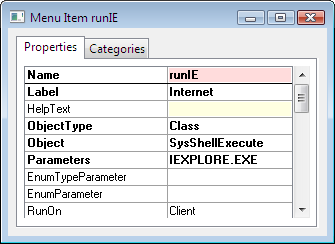
The following figure shows the property dialog of a menu item using SysShellExecute. The menu item shown will open an Internet Explorer browser when executed.

SysShellExecute Menu Item Property

Opening a File or URL

You shall not encounter any issue running application with class SysShellExecute. However, I have received enquiry when it comes to opening a file or a URL. I do not want to go into the ways they have tried. Basically opening file and URL are equally simple.

1. Default Application

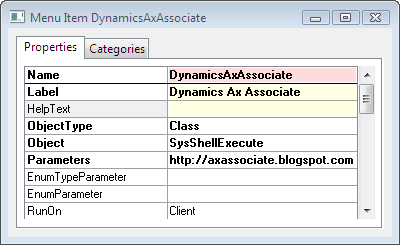
Windows has associated different file type to a default application. We just need to execute the file name in order to open that file with the default application. The following figure shows the property page of a menu item that opens the website Dynamics Ax Associate in the default browser.

Open URL with SysShellExecute Menu Item

2. Specific Application

The previous approach opens the file or URL in the default application. There are cases where you need to specify the application to open the file with. You may achieve this with static method WinAPI::shellExecute.

Let say the default browser for your computer is FireFox and the website you are opening requires Internet Explorer. You may use the following code to open the URL with Internet Explorer.

WinAPI::shellExecute("IEXPLORE.EXE",
    "http://axassociate.blogspot.com");

Conclusion

The examples given above cover the execution of Windows Internet Explorer and opening of URL. They work similarly with a Word Document, Excel Spreadsheet, etc.

Report with Sum at Header using Duplicated Query

March 15, 2008

Your report needs the summation of some fields at the Header portion but you do not want to hack the report classes to achieve that.

Dynamics Ax subtotal is available only at the footer. If you need it in some other section, you would have to find a way around. We will look at an approach where the report query is duplicated for the necessary calculation at the section header.

The demo subsequently will produce the report illustrated in the following figure. The section footer is the subtotal produced by the standard report. The section header on the other hand shows the output of the approach suggested.

Dynamics Ax Report with Sum at Header

Motivation

There are ways to achieve this. The use of duplicated query is motivated by the following factors.

  • It could be applied to existing report without affecting the overall structure. In other words, no changes will be required on the data source and other sections in the report.
  • The calculation is in accordance to the filters set by the user without additional work.
  • The report query will be handled by Dynamics Ax report subsystem while we will only work on the duplicated copy of the query.

Technique Highlight

Basically we will have two copy of the same query. At the section group header, we will loop the duplicated copy until the next header group is reached. The necessary work is performed while we loop and the value to be shown at the group heading is prepared prior to executing the group header. Then the report subsystem will take over and loop the original copy of the query.

The following code segment illustrates the technique explained above.

// loop as long as within the same subheading group.
do {
  custTransLoop = qrHead.get(custTransLoop.TableId);
  if (custTransLoop.AccountNum == CustTrans.AccountNum) {
    rSum += custTransLoop.AmountCur;
  }
  else {
    break; //heading group changed.
  }
} while (qrHead.next());

mrSum = rSum; //value prepared for heading.

super(); //execute group heading.

The following code segment illustrates how the report query is duplicated into a QueryRun object.

qrHead = new QueryRun(element.query());

Demo

We will create a simple report with CustTrans as the only data source to demonstrate the highlighted approach. We dissect the whole process into three sections. The first will cover creating report while the second is regarding adding subtotal just to verify the outcome of the calculation. The final section is the one that cover the approach recommended. Those that are well versed with Dynamics Ax reporting tool may opt to skip the first two sections.

Create Report

The following steps cover report creation. Alternatively, you may use the Report Wizard to perform this.

  1. Create a new project to group objects if you have not.
  2. Right click on your project and select New > Report. You will have a report with the name Report1 created.
  3. Right click on Data Sources > Query > Data Sources and select New Data Source. Change the Table to CustTrans under the Property Page.
  4. Expand the node CustTrans(CustTrans) and right click on the node Sorting. Select New > Field. Ensure the Field is AccountNum. Change the properties AutoHeader and AutoSum to Yes.
  5. Right click on the Designs node and select New Report Design. You will see a new node named ReportDesign1 with a child node named AutoDesignSpecs.
  6. Right click on ReportDesign1 and select Generate Design. You will see a node named Generated Design added. You will also see a node named Section Group: CustTrans too.
  7. Expand the Section Group: CustTrans and right click on Body:CustTrans_Body. Select New Control > Field Group from CustTrans. Change the field group's DataGroup property to AutoReport.

Validation preparation

The following steps add a subtotal to a field for verification.

  1. Change the AutoFieldGroupOrder property to "Save the fields' properties" for the field group.
  2. Expand the Group and find control named Real: CustTrans_AmountCur and change the SumAll property to Yes.
  3. Right click on Footer: CustTrans_Footer and select New Control > Sum. Change the properties of the newly added for Table to CustTrans and Field to AmountCur.

Sum at Header

You now have a report with subheading. The following steps demonstrate the approach mentioned earlier.

  1. Add the following declaration to classDeclaration of the report. The classDeclaration will now look like the following.
  2. public class ReportRun extends ObjectRun
    {
      AmountCurDebCred  mrSum;
      QueryRun          qrHead;
    }

  3. Add a new method to Header: CustTrans_Header and copy the following code to it.
  4. display AmountCurDebCred SumAmtCur()
    {
      return mrSum;
    }

  5. Then add a new a control with the display method to the Header. This could be done by dragging the method and dropping it at the Header: CustTrans_Header node.
  6. Override the method executeSection() of the header with the following code. The method CustTrans_Header:executeSection() shall looks like the following.
  7. public void executeSection()
    {
      CustTrans  custTransLoop;
      real       rSum;

      // dupplicate the query on first execution of the header.
      if (!qrHead) {
        qrHead = new QueryRun(element.query());
        qrHead.next();
      }

      // loop as long as within the same subheading group.
      do {
        custTransLoop = qrHead.get(custTransLoop.TableId);
        if (custTransLoop.AccountNum == CustTrans.AccountNum) {
          rSum += custTransLoop.AmountCur;
        }
        else {
          break;
        }
      } while (qrHead.next());

      mrSum = rSum; //prepare value to be shown at group header.

      super(); //execute the group header.
    }

Microsoft Supplies the Brain of Formula One Cars

March 12, 2008

The FIA Formula One World Championship Season 2008 will commence this week. After months of winter development and testing, Melbourne will again host the inaugural race of the season. The Australian Grand Prix weekend will start on Friday, March 14, 2008 and the race on Sunday.

Formula One Race

I have been following F1 for more than a decade. I love the passion and spirit where some 1000 people work as a team in the most efficient manner towards one goal, to prepare and run two cars for 18 (depends on the schedule of the season) races a year. I also love the complexity of its technology and the pace of development. The whole team is going all out to extract every bit of performance they could from the package.

The Regulation

There will be further rule change in accordance to the direction of FIA president Max Mosley as usual. We will focus on Technical Regulations Article 8.2.1 concerning Control Electronics.

8.2.1 All components of the engine and gearbox, including clutch, differential and all associated actuators must be controlled by an Electronic Control Unit (ECU) which has been manufactured by an FIA designated supplier to a specification determined by the FIA.

The ECU may only be used with FIA approved software and may only be connected to the control system wiring loom, sensors and actuators in a manner specified by the FIA.

The Project

Formula One Logo

Microsoft will have its share of Formula One technology this year. In year 2006, Microsoft in partnership with McLaren Electronics Systems (MES) was awarded the tender to supply Engine Control Unit (ECU) for all teams. Microsoft is part of the FIA designated supplier mentioned in the regulation above for FIA Formula One World Championship in 2008, 2009 and 2010. It was announced in the FIA press release on July 5, 2006. After more than a year of development and following testing by all Formula One contenders for 2008 season, it is ready for race in the next few days.

So what does this ECU do? It monitors and controls just about every aspect of the engine operation. It controls the ignition timing, fuel quantity and mixture, etc. base on data gathered from over 100 sensors in the car. The same data will also be continuously transmitted in real time back to the control center of each Formula One team at the pit-side. As far as I am concerned, Scuderia Ferrari Marlboro also broadcast the data back to their factory at Maranello in real time.

According to Microsoft press release dated December 11, 2006, we will see a host of Microsoft software solution employed. Among them are Microsoft Windows Vista, Microsoft SQL Server 2005, and Microsoft Office 2007. Hope we could get more information on the actual deployment soon.

Final Thoughts

I would say this project is very much in line with Microsoft ideology. Formula One is widely agreed as the pinnacle of motorsport. It attracted the best people in the industry and the pace of technology advancement is second to none.

The sport is about a group of highly able professionals continuously digesting huge set of data making split second decisions to affect the outcome of the race to their favor. The system supplied will utilize various Microsoft technologies to support informed decision at the highest pace and precision.

Microsoft constantly declares that they want to provide people with the right technology and tools to enable them to succeed in their business. The ability to provide tools for this business is definitely a respectable achievement.

I have seen people joke about the idea of these ECUs software crashes in the middle of race, etc. since the announcement was made. I would not say it is impossible to happen that way but looking at the way Formula One teams operate I am positive only very rare glitches would be left unidentified. We could expect an exciting and safe season ahead.

SQL Server Authentication Mode

March 11, 2008

Microsoft SQL Server supports two authentication modes; Windows Authentication and Mixed Mode. Before we move on, I would like to introduce another terminology called authentication method. Authentication method is the way a user is authenticated. Authentication mode on the other hand determines the authentication methods accepted by Microsoft SQL Server.

There are two authentication methods supported by Microsoft SQL Server. They are named Windows Authentication and SQL Server Authentication. The former relies on the Microsoft Windows operating system to authenticate users. The latter will have the user authenticated by Microsoft SQL Server based on the username and password supplied by the client application. The powerful "sa" is an example of login authenticated by SQL Server Authentication.

The following figure shows the login screen of Microsoft SQL Server Management Studio. Note the drop down list with the authentication methods offered.

SQL Server Login Screen - Authentication Mode Selection

Let us get back to authentication mode. The mode Windows Authentication will accept the first method namely Windows Authentication only. As for Mixed Mode, both Windows Authentication and SQL Server Authentication are accepted. In other words, logins such as "sa" will be denied if the mode Windows Authentication is active. The following figure shows the configuration of Authentication mode. You will find it at SQL Server Properties Security page.

SQL Server Properties - Security Page

Windows Authentication is the preferred mode because it provides the highest level of security. It is the default authentication mode for Microsoft SQL Server 2005. The authentication and account policy are enforced by Microsoft Windows operating system.

Mixed Mode is typically used with legacy systems that do not use Windows user accounts. It is also used when the environment consists of clients that need access but is running on operating systems that cannot authenticate with the Microsoft Windows operating system. This happened to clients running Mac OS, UNIX, etc. These clients could login using SQL Server Authentication.

When using Mixed Mode, extra attention has to be given to the login "sa". This account is highly privileged and could pose security threat. It is advisable to create a strong password for this account in case Mixed Mode is used.

Multiple Instances of SQL Server

March 4, 2008

You may install multiple instances (or copies) of Microsoft SQL Server 2005 on the same computer. This is applicable to installing alongside different editions as well as earlier versions Microsoft SQL Server. In other words, you can have more than one set of Microsoft SQL Server installed on one machine working independent from one another.

This capability enables us to strategize the utilization of hardware resources to achieve our needs. It allows test for different customer utilizing different SQL Server edition and version on one server. It is also useful when you host database for customers that requires full administrative control of their SQL Server instance.

Default Instance and Named Instance

There are two types of installation allowed for SQL Server installation; default instance and named instance.

The default instance is an installation where you do not give a name to the instance of Microsoft SQL Server. In this case, the instance name will take the name of the server. Hence, you refer to the Microsoft SQL Server by specifying the server name. Due to the use of server name as instance name, you are only allowed to install one default instance on one machine.

A named instance is an installation where you have to specify a name for the instance of Microsoft SQL Server during installation. The instance of Microsoft SQL Server will be referred in the form of [SERVER NAME]\[INSTANCE NAME]. You may install more than one named instance provided the name of each instances are different.

When you start Microsoft SQL Server installation wizard, it detects whether the default instance already exists. If it could not find one, you will be given the option to install a default instance or a named instance. Otherwise, you will only be allowed the option of installing a named instance.

The following figure shows the screen where you choose the type of instance to be installed. It is part of the installation process.

SQL Server Instance Selection Setup Screen

Conclusion

This capability leaves rooms to creatively strategize installations of Microsoft SQL Server to our needs. However, we have to be wary of the administration overhead and the duplication of components. Each instance will take up additional hard disk space, memory utilization and processor capacity.

SQL Server 2005 Editions

January 31, 2008

I came across associates installing SQL Server 2005 Standard Edition on their laptop. I would not say it is inappropriate from functionalities standpoint. The features that are present in SQL Server 2005 Enterprise edition would not likely to be required. I do not see their laptops exceeding the processor and cluster node limit either.

So what is my problem? I would say there could be a more appropriate edition for the purpose. Determining the appropriate SQL Server 2005 edition in accordance to the intention of the installation is a vital part of the installation process. Let us check out what editions are offered with their intended environment.

SQL Server 2005 Enterprise Edition (32-bit and 64-bit)

Enterprise Edition is the top edition in the series. There is no limitation in both hardware resources and functionalities. It has a complete set of SQL Server 2005 functionalities. It is designed to support the largest enterprise online transaction processing (OLTP) environments with highly complex data-analysis requirements and data warehousing.

You should select Enterprise Edition if the installation requires high processing on large amounts of data. Enterprise Edition allows unlimited processors, unlimited clustering nodes, and features that help to improve data operation performance.

SQL Server 2005 Standard Edition (32-bit and 64-bit)

The Standard Edition is a trimmed down version of the Enterprise Edition. It includes the essential functionality required for business solution, e-commerce, and data warehousing for small and medium sized organization. The Standard Edition supports a maximum of 4 processors but has no limit on memory and database size.

You may consider Standard Edition if the installation host large amounts of data but do not need the features of Enterprise Edition.

SQL Server 2005 Developer Edition (32-bit and 64-bit)

Developer Edition offers all the functionality of SQL Server 2005 Enterprise Edition but is licensed for use as a development and test system. This edition is not meant to be installed as a production server.

You should choose Developer Edition if you would like to develop application that will use Enterprise Edition but do not want to install Enterprise Edition on development or test server.

SQL Server 2005 Workgroup Edition (32-bit)

Workgroup Edition is designed for small business that would like no limits on database size and number of users. It is capable to serve departmental or branch operation, and small Web servers. There is no clustering, analysis service, and features that are meant for larger databases. There is also a limit in hardware resources. It supports up to 2 processors and a maximum of 3 GB of memory.

Workgroup Edition is right for installation with small amounts of data on smaller servers.

SQL Server 2005 Express Edition (32-bit)

Express Edition has the least features with hardware resources limit. It is however free to use and can be distributed to function as client database. Do take note that the data size allowed is limited to 4 GB.

Express Edition is meant to be desktop database. It is commonly use in client applications that requires data store such as a POS terminal.

SQL Server 2005 Mobile Edition

Mobile Edition is designed to run on MS Windows Mobile platform. It is not meant for desktop or servers. It makes good client database on mobile device very much like the Express Edition for desktop.

Summary

Decision on the right edition for a particular installation very much depends on the needed features, intended data size, and hardware you have or planned.

If you are installing on Window Mobile, you have only SQL Server 2005 Mobile Edition to choose from. If you are installing on 64-bit Windows, you may write off the Express and Workgroup Editions as they do not support 64-bit. If it is for production use, Developer Edition is out of the question.

I personally use Developer Edition for my laptop as well as development server. Why don't you identify the edition and version you have installed on your laptop or desktop and share with us?

Find Out SQL Server Edition and Version

January 29, 2008

A friend asked me how to check the version of his SQL Server. He told me that he has checked all the About boxes on applications installed with SQL Server but see nothing relevant.

Checking SQL Server version is slightly different from other Microsoft products. You do not get it by checking the About dialog box. It actually makes sense because there are only About boxes for tools shipped with SQL Server and not the database server itself. These About boxes should show the version of those tools.

Microsoft SQL Server is an instance installed on a machine. You may install multiple instances of SQL Server on one machine. Each of these instances could be of different edition or version (for versions that could co-exist). Naturally SQL Server version and edition is found at the server level.

How to Determine SQL Server Edition and Version

The following are five approaches to achieve the stated objective. The first four methods give you both edition and version whereas the fifth method only provides the version. All the methods except for method number five requires login to the SQL Server.

I personally prefer the use of SERVERPROPERTY function explained in approach number two. It has little dependency on availability of installed components yet it presents data in a readable manner.

1. Enterprise Manager

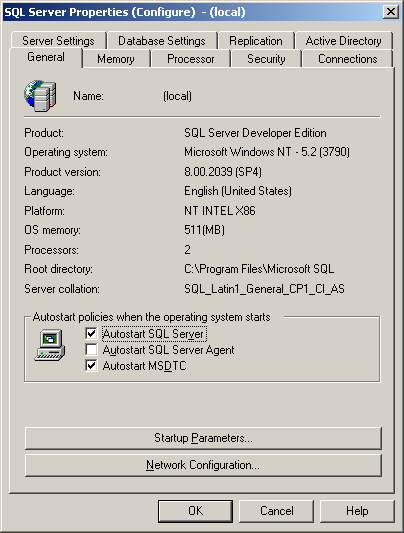
This tool is shipped with Microsoft SQL Server 2000. It provides the most straightforward way to accessing SQL Server edition and version. The whole set of information is shown on the server property page as illustrated in the following figure.

SQL Server Enterprise Manager Property Page General Tab

The figure shows the property of a SQL Server 2000 Developer Edition SP4. This method might be straightforward but it requires that you have Enterprise Manager installed.

2. SERVERPROPERTY Function

SQL Server Edition and Version could be acquired using the SERVERPROPERTY function. This is applicable for SQL Server 2000 and SQL Server 2005. This function takes one parameter that specifies the server property requested. The following is the T-SQL script that returns SQL Server version and edition.

SELECT
  SERVERPROPERTY ('ProductVersion'),
  SERVERPROPERTY ('ProductLevel'),
  SERVERPROPERTY ('Edition')

This query will return one row with three columns. The first column returns the SQL Server version in the form of "major.minor.build". The second column denotes the service pack updates whereas the third column shows the edition. Do find out more about the properties that SERVERPROPERTY function returns.

3. @@VERSION Variable

The global variable @@VERSION stores the SQL Server Edition and Version too. You may find out the value by issuing the following T-SQL query. This approach is applicable to SQL Server 6.5, SQL Server 7.0, SQL Server 2000 and SQL Server 2005. The value returned is illustrated in the following figure.

PRINT @@VERSION

Output of PRINT @@VERSION

The version is found in the form of "major.minor.build". The edition is stated at the final line.

4. Microsoft SQL Server Management Studio

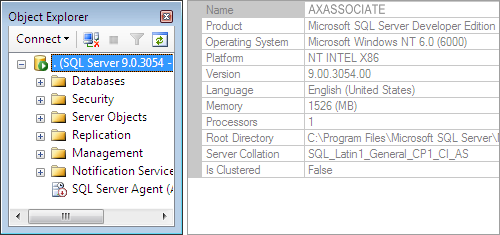
The version of SQL Server connected is shown in the Object Explorer. It is in the form of "major.minor.build". More detail could be found on the property page of the connected instance. The property page also shows the version in number. However, information such as the edition is shown. The following figure shows the object explorer and the property page.

SQL Server 2005 Property Page

5. SQLSERVER.EXE File Property

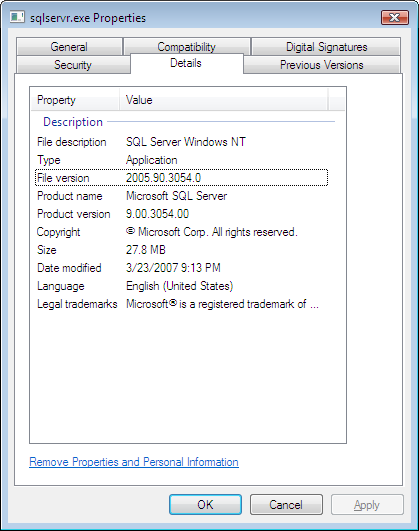
The property page of SQLSERVER.EXE shows the SQL Server version too. Edition however could not be found here. The following figure shows the detail tab on SQLSERVER.EXE property page. This method requires no login to the SQL Server. You just need to find the correct SQLSERVER.EXE file.

SQLSERVER.EXE Property Page

SQL Server Version Number

If you are unable to use the first two methods mentioned above, you would have to identify the version from product version. There is not a pattern to decode the version number to their relevant service pack update. Please find the equivalent with the version number using the following table.

Version NumberService Pack
90.00.3042.00SQL Server 2005 SP2
90.00.2047.00SQL Server 2005 SP1
90.00.1399.00SQL Server 2005 RTM
8.00.2039SQL Server 2000 SP4
8.00.760SQL Server 2000 SP3a
8.00.760SQL Server 2000 SP3
8.00.534SQL Server 2000 SP2
8.00.384SQL Server 2000 SP1
8.00.194SQL Server 2000 RTM
7.00.1063SQL Server 7.0 SP4
7.00.961SQL Server 7.0 SP3
7.00.842SQL Server 7.0 SP2
7.00.699SQL Server 7.0 SP1
7.00.623SQL Server 7.0 RTM
6.50.479SQL Server 6.5 Service Pack 5a (SP5a) Update
6.50.416SQL Server 6.5 Service Pack 5a (SP5a)
6.50.415SQL Server 6.5 Service Pack 5 (SP5)
6.50.281SQL Server 6.5 Service Pack 4 (SP4)
6.50.258SQL Server 6.5 Service Pack 3 (SP3)
6.50.240SQL Server 6.5 Service Pack 2 (SP2)
6.50.213SQL Server 6.5 Service Pack 1 (SP1)
6.50.201SQL Server 6.5 RTM

Final Thoughts

The approach to use very much depends on preference as well as what is available. There are more ways to achieve the objective. One of them is the use of extended procedure xp_msver. We are unable to cover all methods hence we provide a set of approaches that should work in various conditions.

Bill Gates to Depart from Microsoft Corp

January 12, 2008

CES 2008 Bill Gates Keynote

The long planned departure of Bill Gates from Microsoft Corp has finally arrived. He will quit from the full-time role in Microsoft this summer. He announced that when he deliver the keynote address at the CES 2008 in Las Vegas. This means that this 11th keynote of his is also the last he would deliver representing Microsoft. The keynote features a hilarious video staring several big names such as Jay-Z, Bono, Stephen Spielberg, George Clooney, Hillary Clinton, etc. Enjoy the video bellow.

After he quit Microsoft office, he will focus on the work of his charitable organization, the Bill and Melinda Gates Foundation. This foundation has assigned more than $28 billion to those in need.

I wonder how his all time critics feel about his departure. As for Microsoft, he stressed that it is in good hands. I do not remember he had a lot of involvement in Microsoft Dynamics. I supposed there will not going to be any impact on Microsoft Dynamics Ax.

Microsoft SQL Server Orphaned User

December 20, 2007

You have been logging in to SQL Server with a user name only to get Microsoft SQL Server, Error: 18456 one day. You verified that it is a valid user in the database you want to access.

Orphaned User is a term use to describe a condition where a database user does not have a properly defined SQL Server login. As discussed in SQL Server Login and Database User, the mapping of SQL Server login to a Database User is stored within the user database. The mapping information includes the name and the SID of the corresponding SQL Server login.

Orphaned user appears when a database user does not have a SQL Server login of the same name, or having SQL Server login with the same name but different SID. The most common cause is restoring or attaching a database to a different instance of SQL Server. User can also become orphaned when the corresponding SQL Server login is deleted (dropped in SQL Server terminology).

How to Identify

Basically you shall suspect a possibility of orphaned user when you cannot login to the database with the login you usually do or one that you are sure is valid. You may verify by looking at the database user property. The following figures show the property of proper database user and orphaned database user. Notice that the orphaned user is without a login.

MS SQL Server Database User Property Page

MS SQL Server Orphaned User Propery Page

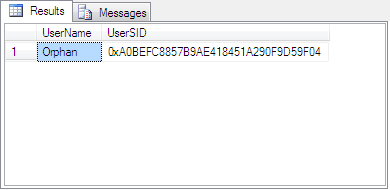
There is a more technical way to detect orphaned user. You may run the procedure sp_change_users_login with the Action parameter Report on the database. You may execute it in Microsoft SQL Server Management Studio or any database client software. The script will return a list of orphaned user name and SID for the particular database. The following is the T-SQL script to detect orphaned user and the subsequent figure shows the result. The result pane would be blank if there is no orphaned user.

USE database_name
EXEC sp_change_users_login @Action='Report'

MS SQL Server Orphaned User List

Remember that user is at database level. You will get the list of orphaned user for the database you execute the previous script on only. That is why I have included the script to change database prior to executing the procedure sp_change_users_login.

How to Resolve

Orphaned user could be resolved fairly easily. You have to first find the login to be mapped to the orphaned user. You will create a new login if there is not one appropriate. Then map the intended login with the orphaned user.

1. Find or create Appropriate Login

The user name that you supplied to access the database server is a login. You should find a login similar to your user name. If you cannot find one, create a new login with the following script.

For windows login, CREATE LOGIN [Domain\User] FROM WINDOWS

For SQL Server login, CREATE LOGIN login_name WITH PASSWORD='password'

2. Map the Orphaned User to Selected Login

The following T-SQL script will do the job.

USE database_name
EXEC sp_change_users_login @Action='update_one', @UserNamePattern='orphaned user', @LoginName='selected login'

Final Thoughts

If you are not familiar with T-SQL scripts and find uncomfortable with the resolution above, there is a more “windows” way. However, this is provided your system does not enforce access rights at database level like Microsoft Dynamics Ax.

Such system will configure the user to hold certain fixed database role. Dynamics Ax for example, the user will have db_datareader, db_datawriter and db_ddladmin fixed database roles. You could find this on the Database User property page.

In order to resolve this using SQL Server Management Studio, you will have to first identify the database roles mentioned above. Then, drop the orphaned user. Finally, map the Login to the database from SQL Server Login property page under the User Mapping tab. You will set the database role on the same page.