Showing posts with label SQL Server. Show all posts

Demo Data for Microsoft Dynamics AX 2009 (en-us)

July 20, 2008

The much awaited Demo Data for Microsoft Dynamics AX 2009 RTM has been released about 10 days ago. However, only demo data for United States English is available at the moment. No news on the availability of demo data in other languages thus far.

As we have seen in the VPC images, the official demo data is base on Contoso Entertainment systems group of companies instead of the Global Trade and Manufacturing Company used in Microsoft Dynamics AX 4.0. In fact, I suspect the data could very well be the same copy as the latest VPC image released.

Dynamics AX Import vs. SQL Server Backup

The demo data available for download comes in two formats. You may chose between the more conventional Microsoft Dynamics® AX DAT where you import through Dynamics AX Data Import utility and Microsoft SQL Server Backup we have been offered recently. The following table shows the different between the two formats.

Microsoft Dynamics AX DAT Microsoft SQL Server Backup
Smaller download size (179 MB - 216 MB) Bigger download size (403 MB - 419 MB)
Slower import time (25 - 150 minutes) Faster restore time (2 - 4 minutes)
Does not include with demo license Demo license included (expires June 6, 2009)
More complicated import routine Simple restoration routine
Master configuration preserved Reconfiguration required after restore.

So how shall we decide? First of all, you have to identify whether you are storing your AX data in Oracle database or Microsoft SQL Server database. If you have an Oracle database, you should just opt for Microsoft Dynamics AX Data Import. I am not suggesting that the other option is impossible but I guess it is not worth the effort.

The second factor would be Dynamics AX license. I noticed many associates searching for the demo license. I have suggested the possibility of using Dynamics AX 2009 CTP3 Ver02 demo database backup while waiting for partner license in What you need to install Microsoft Dynamics AX 2009. This newer version of demo data comes with demo license that expires on June 6, 2009. If you really need that license, Microsoft SQL Server Backup should be your choice.

If the previous two factors have not helped you decide, let's look at the two time factors; download time and import time. The Dynamics AX DAT file is almost half the SQL Server backup file in size which shall requires about half the time to download. However, the time required to import the AX DAT file is extremely high compared to restoring SQL Server backup.

I have tried both approaches on my humble Xeon dual core with 2 GB of RAM. Importing Dynamics AX DAT file with transaction took my server no less than 3 hours. Because the data is divided into a few files for different company, etc. the process requires interaction in between. Restoring the SQL Server backup on the other hand took the same server no more than 3 minutes.

The ftp server that hosts the files is fairly fast hence download time should not really be a problem if you have decent Internet connection. If your Internet connection is known for bad download performance, you may just opt for go for the smaller download and be patience importing data.

Download Demo Data

You may find further information from the download page at PartnerSource: Demo Data for Microsoft Dynamics AX 2009. The following table shows the four options given. You just need one of these files. Pick one that suits your needs. If you are going for AX Data Import, I would strongly suggest that you follow the instruction found in Loading Contoso Demo Data.

Download Description File Size
ContosoBase.DAT AX Import without transaction 179 MB
ContosoTrans.DAT AX Import with transaction 216 MB
ContosoBase.BAK SQL Backup without transaction 419 MB
ContosoTrans.BAK SQL Backup with transaction 403 MB

Dynamics AX 2009 Installation - Database

July 1, 2008

We will look at the first component in a Microsoft Dynamics AX installation; database. The following screenshot shows the option in Dynamics AX 2009 setup that achieves this. This option will create a database in Microsoft SQL Server with the necessary stored procedures. If you intend to use Oracle database, you will have to create the database manually. Do take time to ensure you have the required software installed.

Dynamics AX 2009 Setup - Database

You may run this setup on any computer that has access to the Database server. The user account that you use to execute this must be a member of the dbcreator role on the target SQL Server instance. If you are using the administrator account, your account will most likely be a member of the sysadmin role which has the rights of all the roles combined. The following figure shows the property page of a SQL Server login.

Dynamics AX 2009 Setup - Database server role

Before you begin

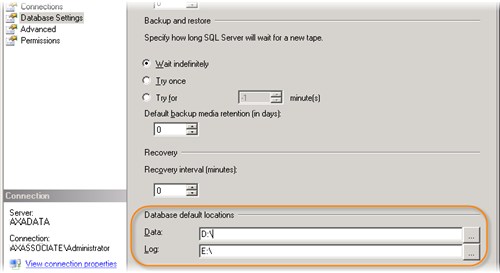
Before you jump into the installation of this component, there one thing I would like you to take note. The installation creates a database without asking you for the location of your data file and log file. It is important that these files are in separate and preferably dedicated physical drive. I suggest that you configure the default file locations in accordance your database server storage plan. This specifies the data and log files locations for databases created subsequently.

Dynamics AX 2009 Setup - Database: default database locations

Dynamics AX Setup - Database

The Database installation is fairly simple. You just have to specify the Microsoft SQL Server instance you would like to create the database on and the name you would like for your new database. The following screenshot illustrates the information collected for this setup.

Dynamics AX 2009 Setup - Database: Create new SQL Server database

Upon completion, you will have a new database with two user stored procedures; CREATESERVERSESSIONS and CREATEUSERSESSIONS. The rest of the objects will be created in subsequent steps of the installation.

Database Access

This database is intended to be accessed by appropriate AOS instances. The account that starts the AOS instances requires certain authority to work correctly. The account must be assigned the db_datareader, db_datawriter and db_ddladmin database roles as shown in the figure below. The first two roles allows AOS to read and write data on the database whereas the final role allows the AOS to create, change and remove objects in the database. DDL in the role name refers to data definition language.

Dynamics AX 2009 Setup - Database User role

Besides these database roles, the AOS account also need execute permission on the two procedures; CREATESERVERSESSIONS and CREATEUSERSESSIONS. The following figure shows the permission configuration for stored procedure.

Dynamics AX 2009 Setup - Database: Stored Procedure permission

Conclusion

This step of the setup process takes little time. There are just a few minor things you should take note to ease the installation of other components as well as administration the system in the long run.

Service Log on Account - Local System, Network Service or Domain User Account

March 25, 2008

Service Log On account is an important yet often overlook configuration. Just as the account you login to your windows workstation determines your authority over resources, the service log on account defines what the service is capable of accessing.

Windows Service

Windows Services are long-running executable applications that run in their own Windows sessions. They are designed not to require user intervention hence do not show any user interface. Those working with Microsoft Dynamics Ax actually work directly with a few Windows Services. The Application Object Server (AOS) of Microsoft Dynamics Ax is implemented as a Windows Service. The database server be it Microsoft SQL Server or Oracle runs as Window Service.

You will find the list of Window Services installed on your computer from the Services Management Console. It is found under Administrative Tools > Services. The following image shows the Services Management Console.

Services Windows Management Console

Log On Account

When we configure a distributed system with Windows Services, Service Log On account is one thing we should pay ample attention to. We do not usually spend effort on this for a standalone all-in-one installation we usually have in our laptop for demo and some development. When the pieces of the software are installed over a few servers however, there will be resources over the network that we need the Windows Service to access.

Microsoft Dynamics Ax AOS for example could be installed on a separate server from the Application files. This is a common model in production environment where more than one AOS is necessary. In this case, the Service Log On Account for these AOS will need rights to the application files over the network. On top of that, the AOS gains access to the database server using this credential too. The rights over database objects are determined by this Log On account.

Apart from that, we would not want these services to interfere with resources within the server itself for security reason. Services for information system such as those database servers are rather prone to attack. It is important that the account that starts this type of Windows Service has sufficient rights over the resources it requires and no more than that.

The following figure illustrates an example of Service Log On Account setting. This is found on the Log On tab of the Service Property dialog box.

Service Property Page - Log On Tab

Account Options

You may choose among three types of accounts to start a Windows Service; the Local System Account, the Network Service Account, or a dedicated Domain User Account.

Local System Account

The local system account is a Windows operating system account that has full administrative rights on the local computer but has no network access rights. If your Windows Service interacts with network resources, this account is not an option. Moreover, this account has too many privileges on local computer. It is not recommended for use with Windows Services we are dealing with.

Network Service Account

The Network Service account is a special built-in system account that is similar to an authenticated user account. This account has the same level of access to system resources and objects as other members of the Users group. Services that log on under this account will use the credentials of the computer account to access network resources. This includes accessing database. You have the option to set database access rights using computer account only.

Apart from the issue in defining database access, this account has too many privileges for the services we are discussing here since it inherits the rights from the Users group.

Domain User Account

Domain user account is an account we create manually in the Active Directory. Privileges could be configured exactly to our needs. We may define resources rights across servers. We could even configure database access specific to the need of the Windows Service.

If we have multiple instances of Dynamics Ax AOS serving different purposes for example, we may have different accounts for the AOS services. This allows us to give rights to the correct set of application files and database only. We will not have to worry even if different teams of people are working on the instances.

This is the most widely used account for starting such service under production environment. It fulfills the requirement of giving all the rights required and not more.

Conclusion

Decision on what account to use very much depends on the environment. However, the general rule of thumb is to have domain user account for services such as Dynamics Ax AOS, SQL Server, SQL Server Agent, etc. in production environment. The flexibility and independence of this account type is helpful.

When you assign a user account to start a Windows Service, additional rights required for this purpose are assigned automatically. This is the case for Dynamics Ax AOS service. SQL Server services on the other hand require more setting than other services. The Log On account for them should be assigned during installation or through the SQL Server Configuration Manager in order to have those setting performed.

SQL Server Authentication Mode

March 11, 2008

Microsoft SQL Server supports two authentication modes; Windows Authentication and Mixed Mode. Before we move on, I would like to introduce another terminology called authentication method. Authentication method is the way a user is authenticated. Authentication mode on the other hand determines the authentication methods accepted by Microsoft SQL Server.

There are two authentication methods supported by Microsoft SQL Server. They are named Windows Authentication and SQL Server Authentication. The former relies on the Microsoft Windows operating system to authenticate users. The latter will have the user authenticated by Microsoft SQL Server based on the username and password supplied by the client application. The powerful "sa" is an example of login authenticated by SQL Server Authentication.

The following figure shows the login screen of Microsoft SQL Server Management Studio. Note the drop down list with the authentication methods offered.

SQL Server Login Screen - Authentication Mode Selection

Let us get back to authentication mode. The mode Windows Authentication will accept the first method namely Windows Authentication only. As for Mixed Mode, both Windows Authentication and SQL Server Authentication are accepted. In other words, logins such as "sa" will be denied if the mode Windows Authentication is active. The following figure shows the configuration of Authentication mode. You will find it at SQL Server Properties Security page.

SQL Server Properties - Security Page

Windows Authentication is the preferred mode because it provides the highest level of security. It is the default authentication mode for Microsoft SQL Server 2005. The authentication and account policy are enforced by Microsoft Windows operating system.

Mixed Mode is typically used with legacy systems that do not use Windows user accounts. It is also used when the environment consists of clients that need access but is running on operating systems that cannot authenticate with the Microsoft Windows operating system. This happened to clients running Mac OS, UNIX, etc. These clients could login using SQL Server Authentication.

When using Mixed Mode, extra attention has to be given to the login "sa". This account is highly privileged and could pose security threat. It is advisable to create a strong password for this account in case Mixed Mode is used.

Multiple Instances of SQL Server

March 4, 2008

You may install multiple instances (or copies) of Microsoft SQL Server 2005 on the same computer. This is applicable to installing alongside different editions as well as earlier versions Microsoft SQL Server. In other words, you can have more than one set of Microsoft SQL Server installed on one machine working independent from one another.

This capability enables us to strategize the utilization of hardware resources to achieve our needs. It allows test for different customer utilizing different SQL Server edition and version on one server. It is also useful when you host database for customers that requires full administrative control of their SQL Server instance.

Default Instance and Named Instance

There are two types of installation allowed for SQL Server installation; default instance and named instance.

The default instance is an installation where you do not give a name to the instance of Microsoft SQL Server. In this case, the instance name will take the name of the server. Hence, you refer to the Microsoft SQL Server by specifying the server name. Due to the use of server name as instance name, you are only allowed to install one default instance on one machine.

A named instance is an installation where you have to specify a name for the instance of Microsoft SQL Server during installation. The instance of Microsoft SQL Server will be referred in the form of [SERVER NAME]\[INSTANCE NAME]. You may install more than one named instance provided the name of each instances are different.

When you start Microsoft SQL Server installation wizard, it detects whether the default instance already exists. If it could not find one, you will be given the option to install a default instance or a named instance. Otherwise, you will only be allowed the option of installing a named instance.

The following figure shows the screen where you choose the type of instance to be installed. It is part of the installation process.

SQL Server Instance Selection Setup Screen

Conclusion

This capability leaves rooms to creatively strategize installations of Microsoft SQL Server to our needs. However, we have to be wary of the administration overhead and the duplication of components. Each instance will take up additional hard disk space, memory utilization and processor capacity.

SQL Server 2005 Editions

January 31, 2008

I came across associates installing SQL Server 2005 Standard Edition on their laptop. I would not say it is inappropriate from functionalities standpoint. The features that are present in SQL Server 2005 Enterprise edition would not likely to be required. I do not see their laptops exceeding the processor and cluster node limit either.

So what is my problem? I would say there could be a more appropriate edition for the purpose. Determining the appropriate SQL Server 2005 edition in accordance to the intention of the installation is a vital part of the installation process. Let us check out what editions are offered with their intended environment.

SQL Server 2005 Enterprise Edition (32-bit and 64-bit)

Enterprise Edition is the top edition in the series. There is no limitation in both hardware resources and functionalities. It has a complete set of SQL Server 2005 functionalities. It is designed to support the largest enterprise online transaction processing (OLTP) environments with highly complex data-analysis requirements and data warehousing.

You should select Enterprise Edition if the installation requires high processing on large amounts of data. Enterprise Edition allows unlimited processors, unlimited clustering nodes, and features that help to improve data operation performance.

SQL Server 2005 Standard Edition (32-bit and 64-bit)

The Standard Edition is a trimmed down version of the Enterprise Edition. It includes the essential functionality required for business solution, e-commerce, and data warehousing for small and medium sized organization. The Standard Edition supports a maximum of 4 processors but has no limit on memory and database size.

You may consider Standard Edition if the installation host large amounts of data but do not need the features of Enterprise Edition.

SQL Server 2005 Developer Edition (32-bit and 64-bit)

Developer Edition offers all the functionality of SQL Server 2005 Enterprise Edition but is licensed for use as a development and test system. This edition is not meant to be installed as a production server.

You should choose Developer Edition if you would like to develop application that will use Enterprise Edition but do not want to install Enterprise Edition on development or test server.

SQL Server 2005 Workgroup Edition (32-bit)

Workgroup Edition is designed for small business that would like no limits on database size and number of users. It is capable to serve departmental or branch operation, and small Web servers. There is no clustering, analysis service, and features that are meant for larger databases. There is also a limit in hardware resources. It supports up to 2 processors and a maximum of 3 GB of memory.

Workgroup Edition is right for installation with small amounts of data on smaller servers.

SQL Server 2005 Express Edition (32-bit)

Express Edition has the least features with hardware resources limit. It is however free to use and can be distributed to function as client database. Do take note that the data size allowed is limited to 4 GB.

Express Edition is meant to be desktop database. It is commonly use in client applications that requires data store such as a POS terminal.

SQL Server 2005 Mobile Edition

Mobile Edition is designed to run on MS Windows Mobile platform. It is not meant for desktop or servers. It makes good client database on mobile device very much like the Express Edition for desktop.

Summary

Decision on the right edition for a particular installation very much depends on the needed features, intended data size, and hardware you have or planned.

If you are installing on Window Mobile, you have only SQL Server 2005 Mobile Edition to choose from. If you are installing on 64-bit Windows, you may write off the Express and Workgroup Editions as they do not support 64-bit. If it is for production use, Developer Edition is out of the question.

I personally use Developer Edition for my laptop as well as development server. Why don't you identify the edition and version you have installed on your laptop or desktop and share with us?

Find Out SQL Server Edition and Version

January 29, 2008

A friend asked me how to check the version of his SQL Server. He told me that he has checked all the About boxes on applications installed with SQL Server but see nothing relevant.

Checking SQL Server version is slightly different from other Microsoft products. You do not get it by checking the About dialog box. It actually makes sense because there are only About boxes for tools shipped with SQL Server and not the database server itself. These About boxes should show the version of those tools.

Microsoft SQL Server is an instance installed on a machine. You may install multiple instances of SQL Server on one machine. Each of these instances could be of different edition or version (for versions that could co-exist). Naturally SQL Server version and edition is found at the server level.

How to Determine SQL Server Edition and Version

The following are five approaches to achieve the stated objective. The first four methods give you both edition and version whereas the fifth method only provides the version. All the methods except for method number five requires login to the SQL Server.

I personally prefer the use of SERVERPROPERTY function explained in approach number two. It has little dependency on availability of installed components yet it presents data in a readable manner.

1. Enterprise Manager

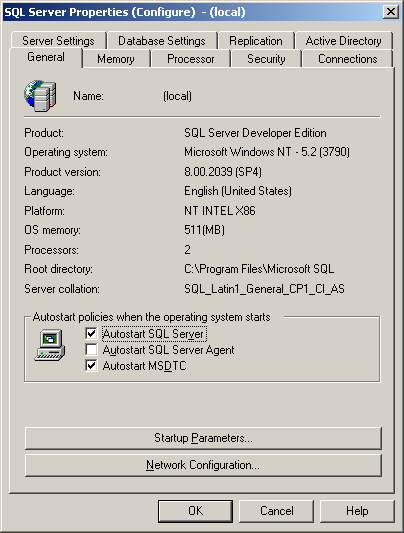
This tool is shipped with Microsoft SQL Server 2000. It provides the most straightforward way to accessing SQL Server edition and version. The whole set of information is shown on the server property page as illustrated in the following figure.

SQL Server Enterprise Manager Property Page General Tab

The figure shows the property of a SQL Server 2000 Developer Edition SP4. This method might be straightforward but it requires that you have Enterprise Manager installed.

2. SERVERPROPERTY Function

SQL Server Edition and Version could be acquired using the SERVERPROPERTY function. This is applicable for SQL Server 2000 and SQL Server 2005. This function takes one parameter that specifies the server property requested. The following is the T-SQL script that returns SQL Server version and edition.

SELECT
  SERVERPROPERTY ('ProductVersion'),
  SERVERPROPERTY ('ProductLevel'),
  SERVERPROPERTY ('Edition')

This query will return one row with three columns. The first column returns the SQL Server version in the form of "major.minor.build". The second column denotes the service pack updates whereas the third column shows the edition. Do find out more about the properties that SERVERPROPERTY function returns.

3. @@VERSION Variable

The global variable @@VERSION stores the SQL Server Edition and Version too. You may find out the value by issuing the following T-SQL query. This approach is applicable to SQL Server 6.5, SQL Server 7.0, SQL Server 2000 and SQL Server 2005. The value returned is illustrated in the following figure.

PRINT @@VERSION

Output of PRINT @@VERSION

The version is found in the form of "major.minor.build". The edition is stated at the final line.

4. Microsoft SQL Server Management Studio

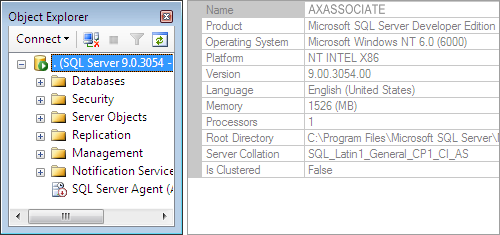
The version of SQL Server connected is shown in the Object Explorer. It is in the form of "major.minor.build". More detail could be found on the property page of the connected instance. The property page also shows the version in number. However, information such as the edition is shown. The following figure shows the object explorer and the property page.

SQL Server 2005 Property Page

5. SQLSERVER.EXE File Property

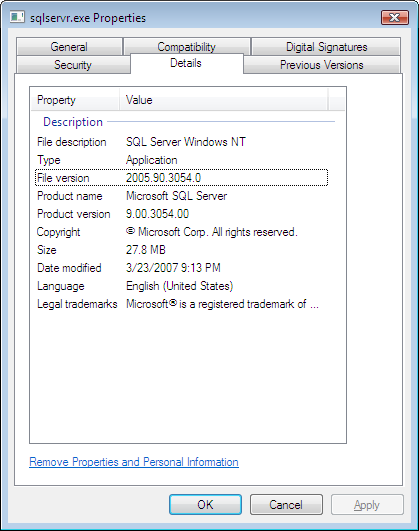
The property page of SQLSERVER.EXE shows the SQL Server version too. Edition however could not be found here. The following figure shows the detail tab on SQLSERVER.EXE property page. This method requires no login to the SQL Server. You just need to find the correct SQLSERVER.EXE file.

SQLSERVER.EXE Property Page

SQL Server Version Number

If you are unable to use the first two methods mentioned above, you would have to identify the version from product version. There is not a pattern to decode the version number to their relevant service pack update. Please find the equivalent with the version number using the following table.

Version NumberService Pack
90.00.3042.00SQL Server 2005 SP2
90.00.2047.00SQL Server 2005 SP1
90.00.1399.00SQL Server 2005 RTM
8.00.2039SQL Server 2000 SP4
8.00.760SQL Server 2000 SP3a
8.00.760SQL Server 2000 SP3
8.00.534SQL Server 2000 SP2
8.00.384SQL Server 2000 SP1
8.00.194SQL Server 2000 RTM
7.00.1063SQL Server 7.0 SP4
7.00.961SQL Server 7.0 SP3
7.00.842SQL Server 7.0 SP2
7.00.699SQL Server 7.0 SP1
7.00.623SQL Server 7.0 RTM
6.50.479SQL Server 6.5 Service Pack 5a (SP5a) Update
6.50.416SQL Server 6.5 Service Pack 5a (SP5a)
6.50.415SQL Server 6.5 Service Pack 5 (SP5)
6.50.281SQL Server 6.5 Service Pack 4 (SP4)
6.50.258SQL Server 6.5 Service Pack 3 (SP3)
6.50.240SQL Server 6.5 Service Pack 2 (SP2)
6.50.213SQL Server 6.5 Service Pack 1 (SP1)
6.50.201SQL Server 6.5 RTM

Final Thoughts

The approach to use very much depends on preference as well as what is available. There are more ways to achieve the objective. One of them is the use of extended procedure xp_msver. We are unable to cover all methods hence we provide a set of approaches that should work in various conditions.

Microsoft SQL Server Orphaned User

December 20, 2007

You have been logging in to SQL Server with a user name only to get Microsoft SQL Server, Error: 18456 one day. You verified that it is a valid user in the database you want to access.

Orphaned User is a term use to describe a condition where a database user does not have a properly defined SQL Server login. As discussed in SQL Server Login and Database User, the mapping of SQL Server login to a Database User is stored within the user database. The mapping information includes the name and the SID of the corresponding SQL Server login.

Orphaned user appears when a database user does not have a SQL Server login of the same name, or having SQL Server login with the same name but different SID. The most common cause is restoring or attaching a database to a different instance of SQL Server. User can also become orphaned when the corresponding SQL Server login is deleted (dropped in SQL Server terminology).

How to Identify

Basically you shall suspect a possibility of orphaned user when you cannot login to the database with the login you usually do or one that you are sure is valid. You may verify by looking at the database user property. The following figures show the property of proper database user and orphaned database user. Notice that the orphaned user is without a login.

MS SQL Server Database User Property Page

MS SQL Server Orphaned User Propery Page

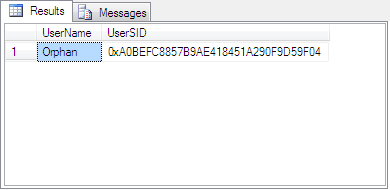
There is a more technical way to detect orphaned user. You may run the procedure sp_change_users_login with the Action parameter Report on the database. You may execute it in Microsoft SQL Server Management Studio or any database client software. The script will return a list of orphaned user name and SID for the particular database. The following is the T-SQL script to detect orphaned user and the subsequent figure shows the result. The result pane would be blank if there is no orphaned user.

USE database_name
EXEC sp_change_users_login @Action='Report'

MS SQL Server Orphaned User List

Remember that user is at database level. You will get the list of orphaned user for the database you execute the previous script on only. That is why I have included the script to change database prior to executing the procedure sp_change_users_login.

How to Resolve

Orphaned user could be resolved fairly easily. You have to first find the login to be mapped to the orphaned user. You will create a new login if there is not one appropriate. Then map the intended login with the orphaned user.

1. Find or create Appropriate Login

The user name that you supplied to access the database server is a login. You should find a login similar to your user name. If you cannot find one, create a new login with the following script.

For windows login, CREATE LOGIN [Domain\User] FROM WINDOWS

For SQL Server login, CREATE LOGIN login_name WITH PASSWORD='password'

2. Map the Orphaned User to Selected Login

The following T-SQL script will do the job.

USE database_name
EXEC sp_change_users_login @Action='update_one', @UserNamePattern='orphaned user', @LoginName='selected login'

Final Thoughts

If you are not familiar with T-SQL scripts and find uncomfortable with the resolution above, there is a more “windows” way. However, this is provided your system does not enforce access rights at database level like Microsoft Dynamics Ax.

Such system will configure the user to hold certain fixed database role. Dynamics Ax for example, the user will have db_datareader, db_datawriter and db_ddladmin fixed database roles. You could find this on the Database User property page.

In order to resolve this using SQL Server Management Studio, you will have to first identify the database roles mentioned above. Then, drop the orphaned user. Finally, map the Login to the database from SQL Server Login property page under the User Mapping tab. You will set the database role on the same page.

SQL Server Login and Database User

December 10, 2007

The terms login and user are often used interchangeably. However, they are used consistently to refer to two different things in Microsoft SQL Server context. In full, they are called SQL Server Login and Database User. Login is at server level whereas user is database level.

SQL Server Login

Login is meant for authentication. You provide a login to gain access to SQL Server. Having accessed the SQL Server does not mean having access to the databases. Some logins are given access to perform server level activities and has no access to database. Other users could be granted access to some of the databases hosted but not necessarily all.

In the Object Explorer of Microsoft SQL Server Management Studio, you will find login under Security > Logins. The following figure shows where login is located.

SQL Server Object Explorer Login Node

Database User

User on the other hand is used to provide access and determine permission on a database. This is database specific. The same login may have different set of permission for different database on the same server.

In the Object Explorer of Microsoft SQL Server Management Studio, you will find user under Database > [Database Name] > Security > Users. User is created by mapping a SQL Server login to a database. The following figure illustrates where user is found in Object Explorer.

SQL Server Object Explorer User Node