Showing posts with label Installation. Show all posts

Demo Data for Microsoft Dynamics AX 2009 (en-us)

July 20, 2008

The much awaited Demo Data for Microsoft Dynamics AX 2009 RTM has been released about 10 days ago. However, only demo data for United States English is available at the moment. No news on the availability of demo data in other languages thus far.

As we have seen in the VPC images, the official demo data is base on Contoso Entertainment systems group of companies instead of the Global Trade and Manufacturing Company used in Microsoft Dynamics AX 4.0. In fact, I suspect the data could very well be the same copy as the latest VPC image released.

Dynamics AX Import vs. SQL Server Backup

The demo data available for download comes in two formats. You may chose between the more conventional Microsoft Dynamics® AX DAT where you import through Dynamics AX Data Import utility and Microsoft SQL Server Backup we have been offered recently. The following table shows the different between the two formats.

Microsoft Dynamics AX DAT Microsoft SQL Server Backup
Smaller download size (179 MB - 216 MB) Bigger download size (403 MB - 419 MB)
Slower import time (25 - 150 minutes) Faster restore time (2 - 4 minutes)
Does not include with demo license Demo license included (expires June 6, 2009)
More complicated import routine Simple restoration routine
Master configuration preserved Reconfiguration required after restore.

So how shall we decide? First of all, you have to identify whether you are storing your AX data in Oracle database or Microsoft SQL Server database. If you have an Oracle database, you should just opt for Microsoft Dynamics AX Data Import. I am not suggesting that the other option is impossible but I guess it is not worth the effort.

The second factor would be Dynamics AX license. I noticed many associates searching for the demo license. I have suggested the possibility of using Dynamics AX 2009 CTP3 Ver02 demo database backup while waiting for partner license in What you need to install Microsoft Dynamics AX 2009. This newer version of demo data comes with demo license that expires on June 6, 2009. If you really need that license, Microsoft SQL Server Backup should be your choice.

If the previous two factors have not helped you decide, let's look at the two time factors; download time and import time. The Dynamics AX DAT file is almost half the SQL Server backup file in size which shall requires about half the time to download. However, the time required to import the AX DAT file is extremely high compared to restoring SQL Server backup.

I have tried both approaches on my humble Xeon dual core with 2 GB of RAM. Importing Dynamics AX DAT file with transaction took my server no less than 3 hours. Because the data is divided into a few files for different company, etc. the process requires interaction in between. Restoring the SQL Server backup on the other hand took the same server no more than 3 minutes.

The ftp server that hosts the files is fairly fast hence download time should not really be a problem if you have decent Internet connection. If your Internet connection is known for bad download performance, you may just opt for go for the smaller download and be patience importing data.

Download Demo Data

You may find further information from the download page at PartnerSource: Demo Data for Microsoft Dynamics AX 2009. The following table shows the four options given. You just need one of these files. Pick one that suits your needs. If you are going for AX Data Import, I would strongly suggest that you follow the instruction found in Loading Contoso Demo Data.

Download Description File Size
ContosoBase.DAT AX Import without transaction 179 MB
ContosoTrans.DAT AX Import with transaction 216 MB
ContosoBase.BAK SQL Backup without transaction 419 MB
ContosoTrans.BAK SQL Backup with transaction 403 MB

Dynamics AX 2009 Installation - Application

July 5, 2008

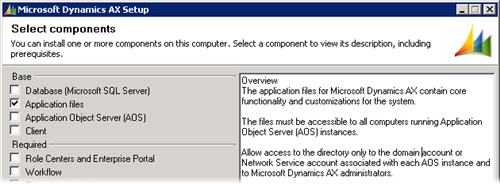
The second component in the installation is the Application files. It resides on the File Server discussed in Microsoft Dynamics AX 2009 Components. These are the files where Microsoft Dynamics AX business logic resides. The following screenshot shows the option in Dynamics AX 2009 setup that installs the application files.

Dynamics AX 2009 Setup - Application files

What to take note

There are two areas I would like you to take note prior to running the installation; the location and disk space.

The Application files are meant to be accessed by Dynamics AX Application Object Server (AOS). Hence, you have to make sure that the location where you install the Application files is accessible by the computer you intend to install the AOS and the account that starts the AOS service has rights over the directory.

A typical production environment has multiple AOS instances running on multiple computers for load balancing. These AOS instances would be configured to access one set of Application files. Therefore, it is common that the Application files are installed in a shared folder.

In term of disk space, an instance of Microsoft Dynamics AX Application files takes up some 3 GB of hard disk space. Expect another 500 MB or so taken upon completion of installation where indexes are built. So, please plan your Application files location properly.

Dynamics AX Setup - Application

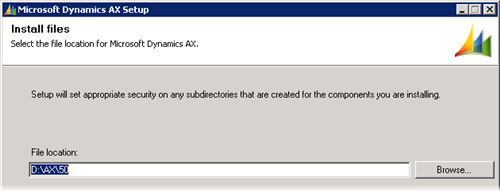
The Application files setup is straightforward. You just have to specify the location, instance name and select optional functionalities. The following screenshots shows the information collected.

Dynamics AX 2009 Setup - Application files Location

Notice the folder structure created with the location you specify previously as the base. A folder named after the instance name you have chosen will be created to store the instance specific Application files.

Dynamics AX 2009 Setup - Application files Instance name

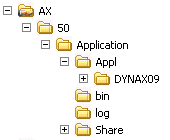
Upon completion, you will have a new Dynamics AX application instance. You shall have the folder structure inside the location you have selected (D:\AX\50 in this case) as shown in the following image.

Dynamics AX 2009 Setup - Application files Folder structure

Conclusion

You should be able to get Microsoft Dynamics AX Application files installed without much drama.

Dynamics AX 2009 Installation - Database

July 1, 2008

We will look at the first component in a Microsoft Dynamics AX installation; database. The following screenshot shows the option in Dynamics AX 2009 setup that achieves this. This option will create a database in Microsoft SQL Server with the necessary stored procedures. If you intend to use Oracle database, you will have to create the database manually. Do take time to ensure you have the required software installed.

Dynamics AX 2009 Setup - Database

You may run this setup on any computer that has access to the Database server. The user account that you use to execute this must be a member of the dbcreator role on the target SQL Server instance. If you are using the administrator account, your account will most likely be a member of the sysadmin role which has the rights of all the roles combined. The following figure shows the property page of a SQL Server login.

Dynamics AX 2009 Setup - Database server role

Before you begin

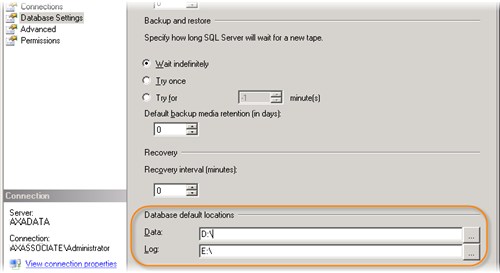
Before you jump into the installation of this component, there one thing I would like you to take note. The installation creates a database without asking you for the location of your data file and log file. It is important that these files are in separate and preferably dedicated physical drive. I suggest that you configure the default file locations in accordance your database server storage plan. This specifies the data and log files locations for databases created subsequently.

Dynamics AX 2009 Setup - Database: default database locations

Dynamics AX Setup - Database

The Database installation is fairly simple. You just have to specify the Microsoft SQL Server instance you would like to create the database on and the name you would like for your new database. The following screenshot illustrates the information collected for this setup.

Dynamics AX 2009 Setup - Database: Create new SQL Server database

Upon completion, you will have a new database with two user stored procedures; CREATESERVERSESSIONS and CREATEUSERSESSIONS. The rest of the objects will be created in subsequent steps of the installation.

Database Access

This database is intended to be accessed by appropriate AOS instances. The account that starts the AOS instances requires certain authority to work correctly. The account must be assigned the db_datareader, db_datawriter and db_ddladmin database roles as shown in the figure below. The first two roles allows AOS to read and write data on the database whereas the final role allows the AOS to create, change and remove objects in the database. DDL in the role name refers to data definition language.

Dynamics AX 2009 Setup - Database User role

Besides these database roles, the AOS account also need execute permission on the two procedures; CREATESERVERSESSIONS and CREATEUSERSESSIONS. The following figure shows the permission configuration for stored procedure.

Dynamics AX 2009 Setup - Database: Stored Procedure permission

Conclusion

This step of the setup process takes little time. There are just a few minor things you should take note to ease the installation of other components as well as administration the system in the long run.

What you need to install Microsoft Dynamics AX 2009

June 27, 2008

As mentioned in Microsoft Dynamics AX 2009 Components, Dynamics AX 2009 is a lot more than just AX Application, AOS and client. It has also expanded externally with integration to various other technologies to achieve its objectives.

As a result, installing Microsoft Dynamics AX 2009 requires more than the installation DVD. This post will provide you with an overview of the software components and their download sources to get you better prepared for the installation.

Some of the components presented below do come in the form of DVD if your company subscribe for them. If you have such luxury, browse through your DVD set to secure them before you set off to install Microsoft Dynamics AX 2009. Otherwise, you might have to spend a day or more to get all of them downloaded.

Microsoft Dynamics AX 2009 Release DVD ISO

Dynamics AX 2009

The most important part is of course the installation DVD itself. You may download the Microsoft Dynamics 2009 Release May Edition DVD ISO file (1.7 GB in size) from PartnerSource as discussed earlier. As far as I am concerned, no physical media should be expected until mid July 2008 when the translation of help topics is scheduled to complete. The DVD ISO file seems to be the only option at the moment.

Since it is in ISO format, you may use any Virtual DVD software to mount it as a DVD disc to use it directly or to extract the files to a physical location. On top of that, you may also burn it into a physical DVD. If you are installing on virtual machines instead, you could load it to the optical drive with ease. All virtual machine platforms I know supports ISO image, be it Microsoft Virtual PC, Virtual Server, VMWare or VirtualBox.

Microsoft .NET Framework 3.5

Microsoft .NET Framework

Microsoft Dynamics AX 2009 utilized the latest features from Windows Presentation Foundation, etc. You need to install Microsoft .NET Framework 3.5 before you are able to install Microsoft Dynamics AX 2009. The table bellow shows the options you have to get the .NET Framework 3.5 installed. Pick one that suits your need best.

Component File name File size
Microsoft .NET Framework 3.5 Live Installer dotNetFx35setup.exe 2.7 MB
Microsoft .NET Framework 3.5 Full Package dotnetfx35.exe 197.11 MB

The Live Installer (bootstrapper) is meant for installation with Internet connection. It will evaluate your system to identify further download required. The installation will requires additional file download of 50 - 200 MB depending on how up to date your system is. This is the better choice for single installation. You will usually end up downloading less than the full package.

The Full Package on the other hand is meant for mass deployment. The download consists of all the files necessary to install the .NET Framework 3.5. You may also want to pick this option if you would like to share the file with other associates.

Service Pack 2 for Microsoft SQL Server 2005

Microsoft SQL Server 2005

If you are hosting your Dynamics AX 2009 data with Microsoft SQL Server 2005, you will need Service Pack 2 or later. This service pack has been released for over a year. In case you have not updated your Microsoft SQL Server 2005 to SP2, you may download the update at Microsoft Download: SQL Server 2005 SP2.

This package contains update for all the components of Microsoft SQL Server 2005 including the database server, Analysis Services, Reporting Services, etc. They are all required for Microsoft Dynamics AX 2009 installation.

Dynamics AX 2009 Demo Data

There is no official demo data available for Dynamics AX 2009 Release yet. The closest we could find is the demo data for AX 2009 CTP3 VPC version 2. This download is in the form of Microsoft SQL Server database backup instead of the usual Dynamics AX data import file we are familiar with. In order to use this data, you will not have to install the database option in the setup. You should restore this backup as a Microsoft SQL Server database and install the application and AOS to connect to it.

I notice a lot of associates are searching for Dynamics AX 2009 license. If you install with this demo database, you will have the demo license which last until August 31, 2008. This could be a good option in case you have not got the partner license file.

Component File name File size
Demo data AX 2009 CTP3 VPC Ver02 Demo data AX 2009 CTP3 VPC Ver02.zip 129 MB

Microsoft Windows Sharepoint Services 3.0 with Service Pack 1

Microsoft Windows Sharepoint Services

Sharepoint Services 3.0 SP1 is required to host the Role Centers and Enterprise Portal. It is not included in the Dynamics AX 2009 Installation DVD. You have an option to use Microsoft Office Sharepoint Server 2007 or Microsoft Windows Sharepoint Services 3.0.

If Windows Sharepoint is your choice and your machine does not have it installed, you would have to download it first. It is available for download at Microsoft Download.

Component File name File size
Windows SharePoint Services 3.0 with Service Pack 1 SharePoint.exe 104.1 MB
Windows SharePoint Services 3.0 x64 with Service Pack 1 SharePoint.exe 115.4 MB

Windows SDK for Windows Server 2008 and .NET Framework 3.5

Windows SDK is required for Reporting Extension to work. You may get the Windows SDK for your operating system. Windows SDK for Windows Server 2008 and .NET Framework 3.5 is the latest at the time of writing. It could be used for Windows Server 2003, Windows Server 2008, Windows Vista and Windows XP.

Like Microsoft .NET Framework 3.5, you have an option to get it installed through web setup or the complete package. The complete package for Windows SDK for Windows Server 2008 is in DVD ISO format.

Component File name File size
Windows SDK for Windows Server 2008 and .NET Framework 3.5 Web Setup Setup.exe 418.59 KB
Windows SDK for Windows Server 2008 and .NET Framework 3.5 DVD ISO 6.0.6001.18000.367-KRMSDK_EN.iso 1330 MB

Microsoft Visual Studio 2008 Shell (isolated mode) Redistributable Package

This package is required for the Reporting Extension to work. There are two Microsoft Visual Studio 2008 Shell redistributable package; isolated and integrated. Make sure you are having the isolated package.

When you install this package, please note that the executable vs_AppEnvRedist.exe extracts the installation files to a location. You should execute the actual installation file found at the location where you extracted the files.

Component File name File size
Microsoft Visual Studio 2008 Shell (isolated mode) Redistributable Package vs_AppEnvRedist.exe 384.4 MB

Conclusion

The software prerequisite for getting Microsoft Dynamics AX 2009 installed is more than those we have listed here. The rest of the software is included in the installation DVD.

Happy installing Microsoft Dynamics AX 2009.