Calling up external program from Dynamics Ax can be something very interesting to audience during introductory training and demo. Once in a while, I will encounter associates asking if it is possible to run external program, open word document, open a URL in an external browser, etc. from within Dynamics Ax. Usually they will show a sign of immense enthusiasm when I show them how it is achieved. It is like their imagination is exploring all sort of creative ways to make use of this facility.
The interesting part is that executing external application is fairly effortless in Dynamics Ax. X++ is capable of calling Microsoft Windows Application Programming Interface (API). The common functionalities of the Win API have been built in classes WinAPI, WinAPIServer, WinGDI and WinInet. Running external application could be achieved through the static method WinAPI::shellExecute.
Static Method WinAPI::shellExecute
This method takes six parameters where five of them are optional parameters. The following code segment shows the interface of this method.
client static int shellExecute(

    Filename _lpFile,

    str      _lpParameters      = '',

    str      _lpDirectory       = '',

    str      _lpOperation       = #ShellExeOpen,

    int      _show              = #SW_SHOWNORMAL,

    boolean  _waitForCompletion = false

    )
The interface might look complicated but the first parameter is usually all we need to assign. It is sufficient to achieve most of the scenarios. The second parameter allows us to execute an executable with parameters. We will look at examples where this second parameter comes into play later.
Class SysShellExecute
The class SysShellExecute facilitates calling WinAPI::shellExecute. This class has a main method that call the method WinAPI::shellExecute using args.parm() as the first parameter. This enables WinAPI::shellExecute to be called from menu item with ease. This is important Dynamics Ax bring up windows through menu item. Menu item works with buttons with ease.
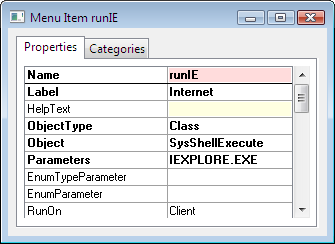
The following figure shows the property dialog of a menu item using SysShellExecute. The menu item shown will open an Internet Explorer browser when executed.
Opening a File or URL
You shall not encounter any issue running application with class SysShellExecute. However, I have received enquiry when it comes to opening a file or a URL. I do not want to go into the ways they have tried. Basically opening file and URL are equally simple.
1. Default Application
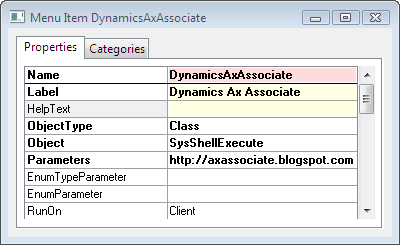
Windows has associated different file type to a default application. We just need to execute the file name in order to open that file with the default application. The following figure shows the property page of a menu item that opens the website Dynamics Ax Associate in the default browser.
2. Specific Application
The previous approach opens the file or URL in the default application. There are cases where you need to specify the application to open the file with. You may achieve this with static method WinAPI::shellExecute.
Let say the default browser for your computer is FireFox and the website you are opening requires Internet Explorer. You may use the following code to open the URL with Internet Explorer.
WinAPI::shellExecute("IEXPLORE.EXE",

    "http://axassociate.blogspot.com");
Conclusion
The examples given above cover the execution of Windows Internet Explorer and opening of URL. They work similarly with a Word Document, Excel Spreadsheet, etc.