Dynamics AX 2009 Installation - Database

July 1, 2008

We will look at the first component in a Microsoft Dynamics AX installation; database. The following screenshot shows the option in Dynamics AX 2009 setup that achieves this. This option will create a database in Microsoft SQL Server with the necessary stored procedures. If you intend to use Oracle database, you will have to create the database manually. Do take time to ensure you have the required software installed.

Dynamics AX 2009 Setup - Database

You may run this setup on any computer that has access to the Database server. The user account that you use to execute this must be a member of the dbcreator role on the target SQL Server instance. If you are using the administrator account, your account will most likely be a member of the sysadmin role which has the rights of all the roles combined. The following figure shows the property page of a SQL Server login.

Dynamics AX 2009 Setup - Database server role

Before you begin

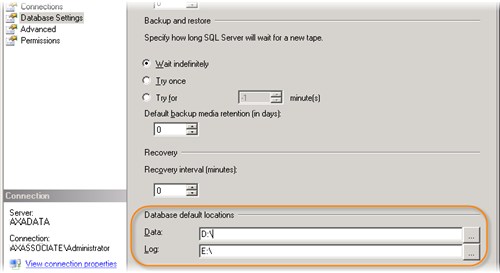
Before you jump into the installation of this component, there one thing I would like you to take note. The installation creates a database without asking you for the location of your data file and log file. It is important that these files are in separate and preferably dedicated physical drive. I suggest that you configure the default file locations in accordance your database server storage plan. This specifies the data and log files locations for databases created subsequently.

Dynamics AX 2009 Setup - Database: default database locations

Dynamics AX Setup - Database

The Database installation is fairly simple. You just have to specify the Microsoft SQL Server instance you would like to create the database on and the name you would like for your new database. The following screenshot illustrates the information collected for this setup.

Dynamics AX 2009 Setup - Database: Create new SQL Server database

Upon completion, you will have a new database with two user stored procedures; CREATESERVERSESSIONS and CREATEUSERSESSIONS. The rest of the objects will be created in subsequent steps of the installation.

Database Access

This database is intended to be accessed by appropriate AOS instances. The account that starts the AOS instances requires certain authority to work correctly. The account must be assigned the db_datareader, db_datawriter and db_ddladmin database roles as shown in the figure below. The first two roles allows AOS to read and write data on the database whereas the final role allows the AOS to create, change and remove objects in the database. DDL in the role name refers to data definition language.

Dynamics AX 2009 Setup - Database User role

Besides these database roles, the AOS account also need execute permission on the two procedures; CREATESERVERSESSIONS and CREATEUSERSESSIONS. The following figure shows the permission configuration for stored procedure.

Dynamics AX 2009 Setup - Database: Stored Procedure permission

Conclusion

This step of the setup process takes little time. There are just a few minor things you should take note to ease the installation of other components as well as administration the system in the long run.

What you need to install Microsoft Dynamics AX 2009

June 27, 2008

As mentioned in Microsoft Dynamics AX 2009 Components, Dynamics AX 2009 is a lot more than just AX Application, AOS and client. It has also expanded externally with integration to various other technologies to achieve its objectives.

As a result, installing Microsoft Dynamics AX 2009 requires more than the installation DVD. This post will provide you with an overview of the software components and their download sources to get you better prepared for the installation.

Some of the components presented below do come in the form of DVD if your company subscribe for them. If you have such luxury, browse through your DVD set to secure them before you set off to install Microsoft Dynamics AX 2009. Otherwise, you might have to spend a day or more to get all of them downloaded.

Microsoft Dynamics AX 2009 Release DVD ISO

Dynamics AX 2009

The most important part is of course the installation DVD itself. You may download the Microsoft Dynamics 2009 Release May Edition DVD ISO file (1.7 GB in size) from PartnerSource as discussed earlier. As far as I am concerned, no physical media should be expected until mid July 2008 when the translation of help topics is scheduled to complete. The DVD ISO file seems to be the only option at the moment.

Since it is in ISO format, you may use any Virtual DVD software to mount it as a DVD disc to use it directly or to extract the files to a physical location. On top of that, you may also burn it into a physical DVD. If you are installing on virtual machines instead, you could load it to the optical drive with ease. All virtual machine platforms I know supports ISO image, be it Microsoft Virtual PC, Virtual Server, VMWare or VirtualBox.

Microsoft .NET Framework 3.5

Microsoft .NET Framework

Microsoft Dynamics AX 2009 utilized the latest features from Windows Presentation Foundation, etc. You need to install Microsoft .NET Framework 3.5 before you are able to install Microsoft Dynamics AX 2009. The table bellow shows the options you have to get the .NET Framework 3.5 installed. Pick one that suits your need best.

Component File name File size
Microsoft .NET Framework 3.5 Live Installer dotNetFx35setup.exe 2.7 MB
Microsoft .NET Framework 3.5 Full Package dotnetfx35.exe 197.11 MB

The Live Installer (bootstrapper) is meant for installation with Internet connection. It will evaluate your system to identify further download required. The installation will requires additional file download of 50 - 200 MB depending on how up to date your system is. This is the better choice for single installation. You will usually end up downloading less than the full package.

The Full Package on the other hand is meant for mass deployment. The download consists of all the files necessary to install the .NET Framework 3.5. You may also want to pick this option if you would like to share the file with other associates.

Service Pack 2 for Microsoft SQL Server 2005

Microsoft SQL Server 2005

If you are hosting your Dynamics AX 2009 data with Microsoft SQL Server 2005, you will need Service Pack 2 or later. This service pack has been released for over a year. In case you have not updated your Microsoft SQL Server 2005 to SP2, you may download the update at Microsoft Download: SQL Server 2005 SP2.

This package contains update for all the components of Microsoft SQL Server 2005 including the database server, Analysis Services, Reporting Services, etc. They are all required for Microsoft Dynamics AX 2009 installation.

Dynamics AX 2009 Demo Data

There is no official demo data available for Dynamics AX 2009 Release yet. The closest we could find is the demo data for AX 2009 CTP3 VPC version 2. This download is in the form of Microsoft SQL Server database backup instead of the usual Dynamics AX data import file we are familiar with. In order to use this data, you will not have to install the database option in the setup. You should restore this backup as a Microsoft SQL Server database and install the application and AOS to connect to it.

I notice a lot of associates are searching for Dynamics AX 2009 license. If you install with this demo database, you will have the demo license which last until August 31, 2008. This could be a good option in case you have not got the partner license file.

Component File name File size
Demo data AX 2009 CTP3 VPC Ver02 Demo data AX 2009 CTP3 VPC Ver02.zip 129 MB

Microsoft Windows Sharepoint Services 3.0 with Service Pack 1

Microsoft Windows Sharepoint Services

Sharepoint Services 3.0 SP1 is required to host the Role Centers and Enterprise Portal. It is not included in the Dynamics AX 2009 Installation DVD. You have an option to use Microsoft Office Sharepoint Server 2007 or Microsoft Windows Sharepoint Services 3.0.

If Windows Sharepoint is your choice and your machine does not have it installed, you would have to download it first. It is available for download at Microsoft Download.

Component File name File size
Windows SharePoint Services 3.0 with Service Pack 1 SharePoint.exe 104.1 MB
Windows SharePoint Services 3.0 x64 with Service Pack 1 SharePoint.exe 115.4 MB

Windows SDK for Windows Server 2008 and .NET Framework 3.5

Windows SDK is required for Reporting Extension to work. You may get the Windows SDK for your operating system. Windows SDK for Windows Server 2008 and .NET Framework 3.5 is the latest at the time of writing. It could be used for Windows Server 2003, Windows Server 2008, Windows Vista and Windows XP.

Like Microsoft .NET Framework 3.5, you have an option to get it installed through web setup or the complete package. The complete package for Windows SDK for Windows Server 2008 is in DVD ISO format.

Component File name File size
Windows SDK for Windows Server 2008 and .NET Framework 3.5 Web Setup Setup.exe 418.59 KB
Windows SDK for Windows Server 2008 and .NET Framework 3.5 DVD ISO 6.0.6001.18000.367-KRMSDK_EN.iso 1330 MB

Microsoft Visual Studio 2008 Shell (isolated mode) Redistributable Package

This package is required for the Reporting Extension to work. There are two Microsoft Visual Studio 2008 Shell redistributable package; isolated and integrated. Make sure you are having the isolated package.

When you install this package, please note that the executable vs_AppEnvRedist.exe extracts the installation files to a location. You should execute the actual installation file found at the location where you extracted the files.

Component File name File size
Microsoft Visual Studio 2008 Shell (isolated mode) Redistributable Package vs_AppEnvRedist.exe 384.4 MB

Conclusion

The software prerequisite for getting Microsoft Dynamics AX 2009 installed is more than those we have listed here. The rest of the software is included in the installation DVD.

Happy installing Microsoft Dynamics AX 2009.

Microsoft Dynamics AX 2009 Components

June 16, 2008

After all the excitements around the launch of Microsoft Dynamics AX 2009 RTM with an abundance of all round improvements penned in the roadmap. It is time to take a closer look at the new tool that we will use in the coming battles before we get our hands on it.

Dynamics AX 2009

Apart from the improvements in term of functionalities, Microsoft Dynamics AX 2009 has incorporated numerous technologies under Microsoft to improve communication and visibility of the solution. In Microsoft Dynamics AX 3.0 and 4.0 implementations, I have configured quite some Analysis Services cubes and Reporting Services reports to provide visibility. Microsoft Dynamics AX powers the operation well in those releases but is lacking in term of business process monitoring and business analysis capability out-of-the-box.

Microsoft Dynamics AX 2009 on the other hand has taken a different direction. A huge portion of the functionalities are taken out of Microsoft Dynamics AX. Dynamics AX 2009 comes with plenty of Analysis Services cubes and Reporting Services reports preconfigured. Then there is this dashboard that is hosted by Sharpoint Services. There is also integration with Microsoft Unified Communication, Microsoft Project Server, etc. The following figure shows the various components we may have in a Microsoft Dynamics AX 2009 installation.

Dynamics AX 2009 Setup - Select components

Let us look at the servers in a Dynamics AX 2009 production environment with all these additions. We could divide the servers into three categories; base servers, extension servers and infrastructure support servers.

Base Servers

The base installation consists of the traditional components which include the Database, Application files, Application Object Server (AOS) and the Windows client. There are three servers under this category.

Database server

As the name suggests, this is where Dynamics AX data is stored. Microsoft Dynamics AX 2009 could work with Microsoft SQL Server database as well as Oracle database. Although Oracle database server supports various editions of UNIX, Linux and Windows, supports for Oracle database is limited to issues that could be reproduced with Oracle under Windows environment.

File server

The Microsoft Dynamics AX application files are installed here. The application files installed here will be accessed by all Application Object Servers (AOS) in the environment. Access rights should be configured accordingly.

Application Object Server (AOS)

This server hosts the AOS Windows service. The AOS service coordinate communications among database, application files and the Microsoft Dynamics AX clients. AOS could be installed on a single computer or a server cluster for load balancing.

Extension Servers

Servers under this category add functionalities to Microsoft Dynamics AX.

Role Centers and Enterprise Portal

This server hosts a Microsoft Windows Sharepoint Services site. This server exposes the role center and enterprise portal functionalities to relevant users. You may run Windows Sharepoint Services or Microsoft Office Sharepoint Server to enable these functionalities.

Workflow server

A workflow server runs the Windows Workflow Foundation. It enables the creation of individual workflows as well as business processes in Microsoft Dynamics AX. It controls how a document flows through the system for processing and approval.

Reporting server

A reporting server uses Microsoft SQL Server Reporting Services to add reporting functionality to Microsoft Dynamics AX.

OLAP server

An OLAP server uses Microsoft SQL Server Analysis Services to provide multidimensional reporting functionality to Microsoft Dynamics AX.

Application integration server

An application integration server runs the Application Integration Framework (AIF). It allows the sharing of electronic business documents between Microsoft Dynamics AX and external parties.

Infrastructure Support

The servers mentioned earlier are either the integral part of Microsoft Dynamics AX or add specific functionalities to Microsoft Dynamics AX 2009. Those under this category provide supports. The compulsory server under this category is the domain controller. We could have SMTP server to provide email abilities to alert, mass mailing, etc.

Final Thoughts

With all these additions, you are unable to appreciate Microsoft Dynamics AX 2009 with the traditional base installation where you configure the Database, Application, AOS and Dynamics AX client. At the very least, you need to have the Analysis Services, Reporting Services, and Sharepoint Services.