Showing posts with label user interface. Show all posts

Configure Dynamics Ax Global Search

December 17, 2007

This feature is not one of those that are well hidden. It has taken over the shortcut key Ctrl+F that used to call up the Filter by field dialog box. You might even have accidentally brought up this attractive feature during system demo. However it does not work out of the box. Let us look at the configuration required

Dynamics Ax Global Search is new feature added to the task pane in Dynamics Ax 4.0. It enables users to search for information without specifying the table and field as opposed to conventional search. Although the name global, it is not as global as you might first thought. The keyword entered is searched through fields across tables you selected only.
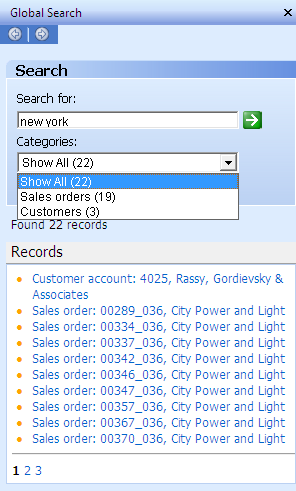
Dynamics Ax Global Search Task Pane

The Global Search Task Pane could be brought up in three ways. You could do it by clicking on the Binocular button on the tool bar, selecting the menu Edit > Find, or by pressing the shortcut key Ctrl + F.

The figure on the right illustrates a Global Search pane with result from the keyword "new york". The Categories combo box allows the user to see results from specific tables only. Clicking on the result would open the form of the designated record with the row focused.

Configuration Procedure

There are two components relevant to this feature. You may find both under menu Basic > Setup > Data Crawler. They are Table Setup and Data Crawler Setup. The former defines the table that you would like searchable within Dynamics Ax Global Search. The latter is the crawler that would build up the search index. Search will be performed on this index and not on the actual data itself.

1. Table Setup

This form is found at the main menu Basic > Setup > Data Crawler > Table Setup. This is where you specify the table that you would like searchable under Dynamics Ax Global Search. The following figures show the Table Setup form.

Global Search - Table Setup

Dynamics Ax - Global Search - Table Search - Text Index

The Incremental checkbox you find on Overview tab indicates that indexing would be done for newly modified record only. This is only applicable for tables with modified date field. It is automatically checked if the table has the field. You are not given an option to check or uncheck this field.

In the tab Text index, you will find the fields added for indexing as well as two columns named Updated date and Updated time. They indicate when is the last time an index has been built for that table. They have impact on tables with Incremental checked. If you add a new field for text indexing after the table has been indexed, the added field will not be indexed until the data is modified. You will have to recreate index to have the field searchable. Recreating index is discussed shortly.

Tables without incremental checked will not face this problem. You may add a field for indexing anytime. The data crawler will pick it up during it subsequent scheduled crawl.

Global Search - Table Setup - Add all field

When you add a new table to the list, you will see a dialog box like the one shown above. The system will ask you whether you want to add all text fields to text index. While this facility eases the setup, it could cost some performance running under production environment. Understanding the intention of Global Search for the company and configuring accordingly is advisable.

2. Data Crawler Setup

You could find Data Crawler setup in Basic > Setup > Data Crawler > Data Crawler. This form is use to configure and manage the state of Data Crawler for each company. The following figure shows the Data Crawler Setup form.

Global Search - Data Crawler

You will get the message “The search indexing engine is not started” for every single search you perform if Data Crawler is not started. The result will still be shown but information might not be up to date. This is where you start the data crawler if it is not configured to start automatically.

You may also set the Data Crawler to start automatically. You do so by checking the Start crawler automatically checkbox in this form. You may define the speed of indexing. The speed settings and the description of the amount of resources it will consume are included in the Crawler speed combo box.

This is the place to recreate index too. We have touched one scenario where re-indexing is required in the previous section. You just have to check the Recreate index checkbox prior to starting crawler to rebuild index.

The option to run crawler in foreground is available from here too. This is done by deselecting the Run in background checkbox. However, I have not found a use for this option as starting the crawler with this option will freeze the Dynamics Ax client. Please let us know if you have found the use of this option.

Final Thoughts

When it comes to data search that spans tables, security control is always a concern. This particular feature has to comply with User Group Permissions and Record Level Security to be useful.

Filtering Record in Dynamics Ax

December 8, 2007

Filtering capability is vital in making huge set of data manageable. Dynamics Ax offers a range of features to filter records.

Dynamics Ax filter toolbar

Filtering data enables users to focus on the subset of data relevant to their intended task. Dynamics Ax offers three ways to filter at its user interface. This is consistent across the whole system. In case there are needs for more specialized filtering, you may engineer them with X++.

Advanced Filter

This filtering option allows you to construct a query to filter records. You may access this feature by pressing Ctrl+F3 or selecting the Advanced Filter/Sort button on the toolbar. You will be presented with the Inquiry form. This form has an interface that is used in many occasions where filtering is applicable. You may define criteria in any field from the tables relevant to the form you are working on. This option allows multiple criteria on a single field. The following figure shows the familiar Inquiry form used for Advanced Filter.

Dynamics Ax advanced filter

This feature might be the most complete filtering option on Dynamics Ax user interface but it requires a little learning curve. It is not as intuitive as the other options where you work directly on the form. The user has to know the name of the field she wants to set filtering criteria.

Having said so, the other methods we will visit shortly sort of fills up this Inquiry form for the user. The user is presented with a more intuitive way of entering filter criteria.

Filter by Grid

This filtering option presents a way to enter criteria at the top of the grid. Criteria could be set for multiple columns and the result fulfills all criteria. The following figure illustrates the Filter by Grid feature. This feature however can only filter base on fields in a grid.

Dynamics Ax filter by grid

When you press the button at the side of the filter column, you will see a drop down list with a wealth of criteria type. Selecting these criteria type would append the syntax for the type. This exposes the choices of criteria at the fingertip. Once you have used to it however, you shall find typing on your own works more efficiently. We will discuss each type in a later section as they are applicable for other filtering options as well.

Filter by Field

This filtering option is accessible from the context menu on form itself. It is applicable to any field on the form by pressing the menu or right clicking on the field. The following figure shows the context menu for field Customer account in Sales order form. The menu items Filter By Field and Filter By Selection are where you access this filtering feature.

Dynamics Ax filter by field

Selecting Filter By Field will bring up a dialog box for you to fill in the filter criteria. The format of criteria is consistent with those in other search and will be discuss in greater detail later.

Filter By Selection will filter the record with the value of the field you selected. It is a Filter By Field with the value inserted for you.

Saving Filter Criteria

The ability to save filtering criteria is useful when the user has a few repetitive tasks that require different subset of records. Saving of filtering criteria could be done for all methods stated above. You could do so through the context menu (see figure above) as well as the Advanced Filter Inquiry form. Use Save filter As to create a new entry whereas use Save filter to save modification on an existing query.

On top of that, there will also be an auto saved query named Previously used query. The last defined filter will be saved under this name. This happened to all the filtering methods mentioned above.

Criteria Format

The filter criteria formats are base on a few elements. The following describe the elements and the special character.

CharacterDescription
*Could be substituted by any zero or more characters in a string.
?Could be substituted by one character.
!Exclude.
.. Inclusive range.
A .. B - between A and B inclusive of A and B.
A .. - greater than or equal to A
.. A - less than or equal to A
<Less than.
>Greater than.

The following table shows the construct of the criteria formats we saw in the Filter by Grid context menu earlier. As you can see, they are a combination of one or more elements from the table above. Much more formats are possible by combining more of these elements.

Criteria TypeFormat
Contains*[text]*
Does not contain!*[text]*
Starts with[text]*
Ends with*[text]
Is (exactly)[text]
Is not![text]
More than>[text]
Less than<[text]
More or equal[text]..
Less or equal..[text]

Final Thoughts

Technically, filtering is performed at the form data source level. Additional options are more towards user interface enhancement. More intuitive ways are definitely possible with some creativity.